BO7 Cronus Zen Setup Guide: PS5, Xbox Series and PC
Every step from unboxed Cronus Zen to holding a spray in Black Ops 7: firmware, the browser loader, ports, the PS5 module, the Xbox protocol and gun picker, the PC cable rule, and the wall test.
 ScarZens
Sep 14, 2026
8 min read
ScarZens
Sep 14, 2026
8 min read

You bought the script, Black Ops 7 is installed, and now you are staring at a Zen that either does nothing or drops your controller every ninety seconds. Nothing about the game is the problem yet. Almost every failed first setup comes down to firmware, the wrong port, or a platform step done out of order.
Do it in this order: update firmware through the web tool, flash the script from the browser loader, wire the console through the CONSOLE port with your controller on A1, do the platform step for your console, then fire one magazine at a wall before you queue. Done properly you are in a match in well under fifteen minutes, and most of that is the firmware update.
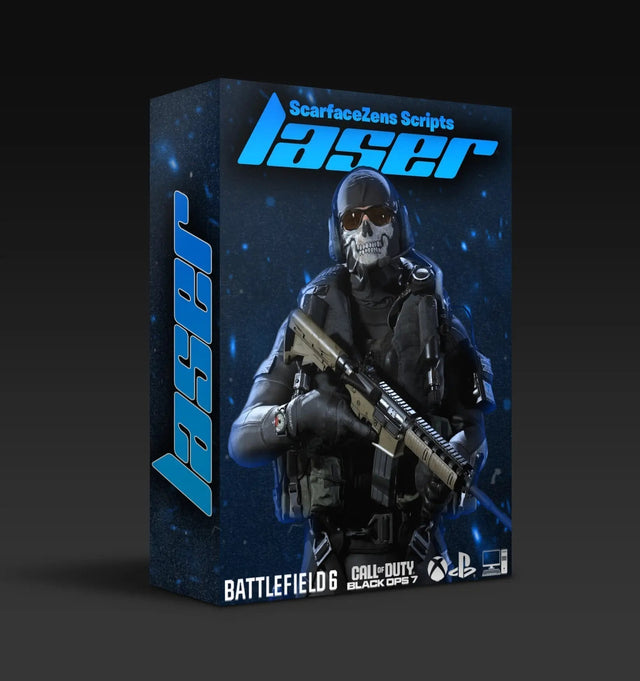
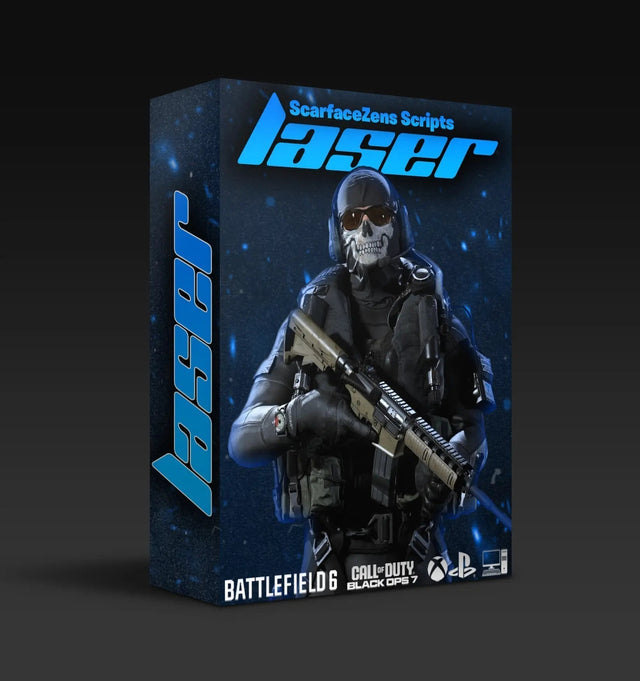
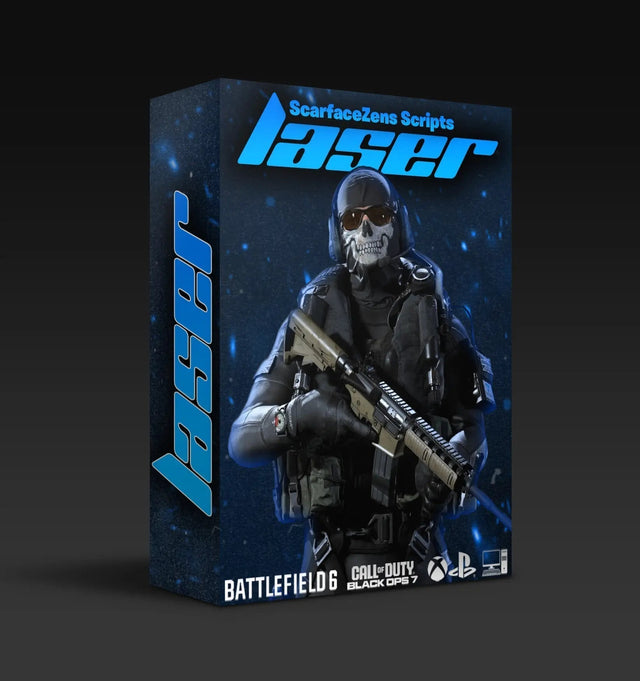
Laser Elite is the BO7 and Warzone build this guide is written around. $49.99 USD at time of writing, down from $58.99. 4.9/5 across 625 reviews, instant delivery, lifetime updates. See what is included →
What do you need before you start?
- A Cronus Zen and a USB cable that carries data, not one that only charges
- A Windows PC or a Mac with Chrome or Edge, because both the firmware tool and the loader need a Chromium browser
- Your controller: a DualSense on PS5, an official Series X|S pad on Xbox, and a licensed console controller on PC
- On PS5, the Zen Link module, covered below
- The Discord account you redeemed your order with
Your Zen holds eight memory slots and each holds one script. If you also run Fortnite or Rust, each gets its own slot, and you switch from the controller without touching a computer.
Step 1: update the firmware
Firmware moved out of Zen Studio and into a browser tool, which is why so many video tutorials are now wrong. If a guide tells you to update from inside the desktop software, close it.
- Hold the small blue reset button while you plug the Zen into your computer through the CONSOLE/PC port. This is the one exception to the port rule below, because the firmware bootloader talks through that port.
- Let go once the screen reads ZEN BOOTLOADER.
- Open the official Cronus firmware tool in Chrome or Edge, click connect, pick Cronus Zen and flash the latest version. Firefox and Safari will not complete this.
It takes under twenty seconds. If the device never appears in the browser's device picker, the cable or the port is the problem rather than the software, and the full firmware update guide covers the edge cases.
Step 2: flash Laser Elite from your browser
There is no file to download. After checkout you redeem your order in the ScarZens Discord, and the script is tied to that account.
- Open scarscripts.com/loader in Chrome or Edge and log in with Discord.
- Close Zen Studio completely. If it is open it reserves the device and the browser can never reach it.
- Plug the Zen into the computer through the PROG port and leave it on its main screen.
- Press Connect My Zen, choose Cronus Bridge in the picker, select Laser Elite, pick an empty slot and flash.
Do not unplug mid-flash. The loader warns you by name before it overwrites an occupied slot, so you cannot lose another script by accident. If the loader will not connect, the three things to check are Zen Studio closed, cable in PROG, main screen showing. Anything the loader itself does not explain is in script not loading.
Step 3: wire it to your console
This is the single most common failure and it takes ten seconds to get right. The ports are not interchangeable.
| Port | What plugs in |
|---|---|
| PROG | Your computer, for the loader and Zen Studio. Unplug it before you play. |
| CONSOLE | Your PS5, Xbox or PC while you play, and your computer for the firmware bootloader only |
| A1 | Your controller |
Get PROG and CONSOLE backwards and the console never sees a controller at all. Hubs and extension cables are the next most common cause of a Zen that looks dead, and Cronus Zen ports explained covers those cases.
Step 4: the platform step
PlayStation 5
Cronus documents full native PS5 support for the DualSense and DualSense Edge through the Zen Link module. Without it your controller disconnects from the console, which is documented behavior rather than a broken setup. The old PS5 bypass is listed as no longer supported, so plan around the module. With it in place you keep rumble, adaptive triggers, the touchpad and a wired headset. PS5 is also where Laser Elite's automatic weapon detection runs, so there is nothing to configure there: fire a gun and the matching profile loads.
Xbox Series X and S
Connect the Zen to your computer through PROG, open Zen Studio, go to the Device panel and set the output protocol to Xbox One X/S. Then put your official Xbox controller on A1. Skip the protocol step and the console never recognizes the Zen as a controller. Weapon detection is not automatic on an Xbox pad, so open the gun picker on the device and set your Primary and Secondary before you queue. The script holds those two profiles until you change them.
PC
Steam, Battle.net and the Xbox app all read the Zen as a standard gamepad. Two rules: unplug the PROG cable before you launch the game, or the device stays in programming mode, and use a licensed console controller rather than a PC-only pad. Plug the Zen into a rear motherboard USB port and confirm Windows sees exactly one controller. If you use a PS5 controller here, automatic detection works the same as on the console.
Get Laser Elite and follow along →
Step 5: set the game before you tune the script
Anti-recoil values are calculated against an in-game sensitivity, so set the game first and do not touch it again mid-season. Three settings matter:
- Stick deadzone (min input): as low as your controller allows without drifting. A high deadzone throws away the small inputs the script relies on.
- Aim assist type: pick one and keep it. Changing it changes what the script has to work with.
- ADS sensitivity multiplier: very low multipliers shrink every input, including the script's.
Laser Elite ships with its values already set, so there is nothing to tune before your first match. The full breakdown of what those settings do to the script is in Cronus Zen deadzone settings.
Step 6: the wall test
Five minutes here saves you a bad first impression of your own setup. Load a private match, stand about 30 meters from a wall with the gun you play most, and hold the trigger through a full magazine with the stick still.
- A group that climbs means under-correction
- A group that walks into the floor means over-correction, and it is the most common first-session complaint
- Sideways drift means the horizontal value does not match your sensitivity
- On Xbox, confirm the picker shows the gun you are holding before you judge anything
On the shipped defaults at a standard sensitivity this lands without adjustment. If yours is unusual, small changes to your in-game sensitivity are usually faster than editing values, and the per-weapon method is in anti-recoil settings for BO7 and Warzone.
If something is still not behaving
| Symptom | Start here |
|---|---|
| Console does not see a controller | Zen not detecting controller, usually ports or a charge-only cable |
| Passes input but no mod does anything | Tournament Mode, which disables scripts while leaving the controller working |
| Sprays climb or dip on one gun | BO7 anti-recoil not working, the fix order |
| Wrong profile on the gun you are holding | Weapon detection not working |
| Aim assist feels dead | Aim assist not working in BO7 |
If it is still not behaving, the fastest fix is usually someone who hit the same wall last week. The 30,000-member ScarZens Discord runs setup threads where the team answers directly.
BO7 Cronus Zen setup FAQ
Do I need a PC every time?
Only for firmware and for flashing a new or updated script. Day to day the Zen runs from its memory slots, and you switch slots from the controller.
Do I need Zen Studio?
For the Xbox output protocol step, yes. For loading Laser Elite, no, and it actively gets in the way of the browser loader, so close it before you flash.
Can I keep BO7 and Warzone in separate slots?
Yes, and it is the cleaner way to work. Eight slots means separate configurations for multiplayer and Warzone, switched from the controller. Cronus Zen memory slots covers how to organize them.
Does the setup change for Season 6?
No. A season drop adds weapons and maps, not a new connection method. What changes is the values on new guns, and those ship in the script update.
How long does the whole thing take?
Around fifteen minutes on a new Zen, most of it firmware. Under two minutes on a device that is already set up.
The short version
Firmware first through a Chromium browser, flash from the loader with Zen Studio closed, controller on A1 and console on CONSOLE, then the platform step: Zen Link on PS5, Xbox One X/S protocol and the gun picker on Xbox, PROG cable out on PC. Set your deadzone before you judge the script, and take your first magazine at a wall rather than into a ranked lobby.
For the full Call of Duty picture, start with our guide to the best COD Cronus Zen script. If the device runs but the game is the question, does the Cronus Zen work on Black Ops 7 and Warzone answers it platform by platform. Everything sits in the full ScarZens script collection.
Our flagship scripts.
Luna Elite, Laser Elite, Nets and Scar-Rust. One purchase each, with free updates for life.
Browse the scripts