Cronus Zen Tournament Mode: Why Your Script Won't Run
Your Zen is plugged in and the script does nothing? Tournament Mode disables the compiler, and getting back to Normal Mode takes under a minute.
 ScarZens Team
Sep 6, 2026
6 min read
ScarZens Team
Sep 6, 2026
6 min read

Your Zen is plugged in, the script is sitting in a slot, and the game plays like you never bought anything. No aim assist boost, no anti-recoil, no macros firing. Before you reflash the device or start blaming the script, check which operational mode the Zen is actually in.
If your Cronus Zen is in Tournament Mode, scripts, macros and GamePacks are switched off at the device level, and no amount of retuning will bring them back. Open Zen Studio, go to Tools then Zen Operational Mode, select Normal Mode and click Finish. That one toggle explains a large share of the "my script does nothing" reports we see.
Run a Fortnite script that works from your first match →
What is Tournament Mode on the Cronus Zen?
The Cronus Zen ships with three operational modes: Normal, Tournament and Wheel. Normal Mode is the default and unlocks the main functions of the device, including the GPC script compiler, GamePacks, the GPC Library and mouse and keyboard support. Tournament Mode goes the other direction and disables the compiler.
With the compiler disabled, the Zen cannot run scripts, macros or GamePacks at all. Cronus documents this as a deliberate trade, and the device also optimizes data throughput while the mode is active. Wheel Mode is a separate thing built for racing wheels and is irrelevant unless you race.
The mode exists so a player can show an event organizer that the device on the desk is running nothing extra. That is why it is a device-level switch rather than a per-script toggle you could forget to flip.
How can you tell which mode your Cronus Zen is in?
Two places tell you, and one of them does not need a computer at all. Zen Studio displays the active operational mode in its status bar, and clicking that area opens the mode interface directly. On the device itself, Tournament Mode adds the letters TE beside the firmware version.
| Mode | Scripts and macros | How to spot it |
|---|---|---|
| Normal Mode | Enabled | Zen Studio status bar reads Normal Mode |
| Tournament Mode | Disabled | TE appears next to the firmware version, plus a graphic on the OLED screen |
| Wheel Mode | Not applicable | Zen Studio status bar reads Wheel Mode |
The TE marker is the fastest tell of the three. If it is showing and you are not sitting at a LAN event, you have found your problem. The OLED graphic exists so you can prove the mode to an organizer without handing over your PC.
How do you switch a Cronus Zen back to Normal Mode?
The mode lives in the device rather than in a config file, so you change it over USB from a computer. Work through this in order, because two of these steps are where people quietly go wrong.
- Connect the Zen to a Windows PC. Cronus supports Windows, and Mac only where Windows 10 is installed on it, using a mini USB cable.
- Use the PROG port, not the CONSOLE/PC port. PROG is the port that talks to Zen Studio, and the wrong one gives you a device that looks connected but is not.
- Open Zen Studio, then go to Tools and Zen Operational Mode. Clicking the mode area in the status bar opens the same interface if you prefer.
- Select Normal Mode and click Finish. The status bar should update as soon as it applies.
- Look at the device screen. The TE marker beside the firmware version should now be gone.
If you are not sure which USB port is which, our guide to the Cronus Zen ports covers what each one does and why the wrong port fails silently. The official Cronus operational mode page has the same steps with screenshots.
Get a BO7 script that reads your weapon for you →
What still works while Tournament Mode is on?
Not everything switches off, which is exactly why this gets misdiagnosed. Cross-Over Controller support and automatic button remapping both keep working in Tournament Mode. Your third-party controller still functions on the console, and your remaps still apply.
So the Zen looks completely alive. The screen is lit, the controller responds, inputs pass through, and the only missing piece is the part you actually paid for. People spend hours reflashing over this.
If your script still does nothing once you have confirmed Normal Mode, the fault has moved somewhere else. Our checklist for a Cronus Zen script not loading works through compiler errors, slot problems and Zen Studio faults in order. Failing that, the 30,000-member ScarZens Discord has admins who walk people through mode and firmware issues daily.
Which script should you load once you are back in Normal Mode?
Normal Mode only restores your ability to run something. What you load into the slot decides whether the Zen earns its place on the desk.
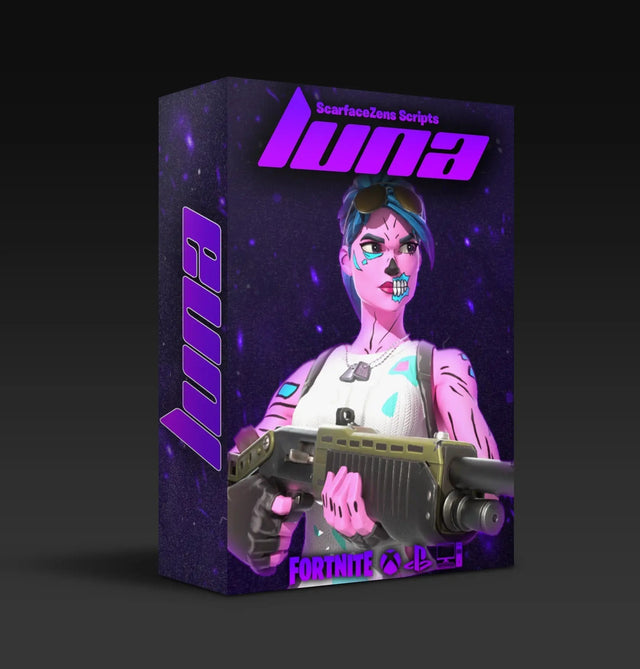
Luna Elite is our Fortnite script. It runs boosted aim assist across close, mid and long range on both Linear and Exponential curves, plus Silent Aim, anti-recoil, edit macros with three modes, a turbo pickup macro, rapid fire, hair triggers and crouch macros. It is $49.99 at time of writing, down from a $58.99 compare-at price, and its product page shows 4.9 out of 5 from 903 customer reviews.
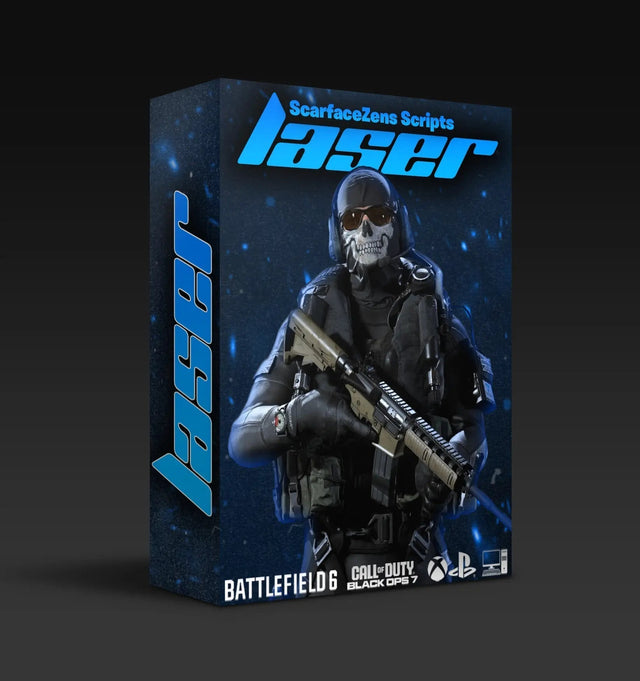
Laser Elite covers Black Ops 7 and Warzone. Its standout feature is full auto weapon detection, which applies the correct anti-recoil profile the moment you fire instead of making you pick a preset, with every Black Ops 7 weapon mapped. It is also $49.99 at time of writing and sits at 4.9 out of 5 from 625 reviews.
The fair objection is whether a script is wasted money if you sometimes need to sit in Tournament Mode. It is not, because the mode is a switch you control and moving back takes under a minute at a desk. Both scripts run on PlayStation 4 and 5, Xbox, PC and Nintendo, and both include free future updates with the copy you buy.
Scar-Rust for Rust Console and Nets for NBA 2K27 sit alongside them in the full ScarZens script collection at the same price at time of writing. If you are unsure which one suits your main game, our breakdown of which Cronus Zen script to run for your game puts them side by side. The store lists 4.9 out of 5 and 4,000+ customers worldwide across the range.
Cronus Zen Tournament Mode FAQ
Does Tournament Mode delete my scripts?
No. Your scripts stay in the Zen's memory slots, and the compiler is simply switched off so none of them execute. Move back to Normal Mode and every slot is exactly as you left it.
Can I change the mode from the Zen itself?
No. The operational mode is set through Zen Studio over USB from the PROG port, so a computer is required. There is no on-device shortcut for switching between Normal and Tournament Mode.
Why is my Zen in Tournament Mode when I never set it?
Usually because someone else set it, or because the unit was bought secondhand and arrived that way. It is also easy to click through the mode dialog during a first setup without reading it. Check the status bar before assuming anything else is broken.
Does mouse and keyboard work in Tournament Mode?
Mouse and keyboard sits among the functions that Normal Mode unlocks, so stay in Normal Mode if you rely on it. Tournament Mode keeps Cross-Over Controller support and automatic button remapping alive, which covers controller compatibility and little else.
Do I need to update firmware after changing modes?
No. Changing the operational mode is a separate job from a firmware update, and leaving Tournament Mode does not require one. If the Zen is misbehaving in other ways too, updating firmware is a reasonable next step on its own.
The short version
Tournament Mode disables the compiler, and with it every script, macro and GamePack on the device. The Zen Studio status bar and the TE marker beside your firmware version both tell you when it is active. Tools, Zen Operational Mode, Normal Mode, Finish, and you are running again.
Our flagship scripts.
Luna Elite, Laser Elite, Nets and Scar-Rust. One purchase each, with free updates for life.
Browse the scripts