Cronus Zen Setup Guide for PS5, Xbox and PC
Most failed Zen setups are the right steps in the wrong order. Here is the sequence for PS5, Xbox and PC, plus the ports and protocol details people miss.
 ScarZens Team
Sep 8, 2026
8 min read
ScarZens Team
Sep 8, 2026
8 min read

Your Zen arrived, you plugged it in, and your console acted like nothing happened. Or the controller connected for ninety seconds and then dropped. Almost every failed first setup comes down to doing the right steps in the wrong order, on the wrong port.
Set up in this order every time: update the firmware, install Zen Studio, register the device, then do controller setup last. PS5 needs the Zen Link module for a controller that stays connected, Xbox needs the output protocol set to Xbox One X/S with the controller on A1, and PC needs the PROG cable unplugged before you launch anything. Get those four steps in sequence and the rest is quick.
Have a script ready the moment setup finishes →
What order should you set up a Cronus Zen in?
Cronus lists the setup path as four steps, and they are ordered that way for a reason. Skipping ahead to controller setup on stale firmware is the single most common way to waste an evening.
- Update the firmware first. Cronus now runs this through a browser-based updater rather than inside Zen Studio, which is why so many older video tutorials leave people stranded. Our Cronus Zen firmware update guide walks the current method.
- Install Zen Studio. This is the desktop software you use to load scripts, set the output protocol and check that the device sees your controller. If the five-tab interface looks impenetrable the first time you open it, our Zen Studio beginners guide explains what each panel actually does.
- Register your Zen. Cronus includes registration as its own step in the official setup path, so do it before you start troubleshooting anything else.
- Do controller setup last. This is the part that differs by platform, and it only behaves once the three steps above are done.
Throughout all of this, the Zen connects to your computer using the PROG port. The other USB port is what faces your console or PC when you actually play. Mixing those two up is the number one reason a setup looks dead on arrival, and our Cronus Zen ports explained breakdown covers exactly which socket does what.
How do you set up a Cronus Zen on PS5?
PS5 is the platform with a real hardware dependency, so read this bit before you buy anything else. Cronus documents full native PS5 support for DualSense and DualSense Edge controllers, with the catch that full functionality comes through the Zen Link Wi-Fi expansion module. Without a Zen Link, your controller will disconnect from the PS5.
That disconnect is not your setup being broken. It is the documented behavior, and it catches out a lot of people who assume a bad cable or a firmware problem. There was an unofficial workaround known as the PS5 bypass, but Cronus now lists it as no longer supported, so plan around the module rather than around the workaround.
Our full Cronus Zen ZenLink PS5 setup guide walks through the console settings and the browser configuration step by step. If the pad is already dropping mid-match, our Cronus Zen not working on PS5 checklist runs the wiring, firmware and network causes in order.
All three console revisions are covered: standard PlayStation 5, PS5 Digital and PS5 Pro. With the Zen Link in place, the DualSense keeps the features you would miss otherwise.
- Rumble and haptic feedback
- Adaptive triggers
- Two-finger and swipe touchpad input
- Gyroscope
- Wired USB headset, plus the DualSense speaker and microphone
If you want the official compatibility tables straight from the source, the Cronus PlayStation 5 support page lists every controller revision and function. Check it against the exact controller model you own before ordering a module.
How do you set up a Cronus Zen on Xbox Series X and Series S?
Xbox is the most forgiving of the three. Cronus supports every version of the Series X and Series S console along with all official Series X|S controllers, and no extra module is involved.
Connect the Zen to your computer through the PROG port, open Zen Studio, go to the Device panel and set the emulator output protocol to Xbox One X/S. Then plug your Xbox controller into the A1 port. That protocol setting is the step people skip, and skipping it means the console never recognizes the Zen as a controller at all.
If your console still shows nothing once the protocol is set, our Cronus Zen not working on Xbox checklist works through the remaining causes in order.
Port assignments matter more on Xbox than anywhere else, because an official Xbox controller has to sit on A1 whenever a second device is in play.
| Port | What goes there |
|---|---|
| PROG | USB cable to your PC for Zen Studio and firmware |
| A1 | Your official Xbox Series X|S controller |
| A2 | A second crossover device, or the controller during wireless pairing |
| A3 | Mouse, keyboard, keypad, or the Xbox Wireless Adapter |
Going wireless needs the Xbox Wireless Adapter, since Cronus does not support Bluetooth for Xbox controllers. Plug the adapter into A3, connect the controller to A2 for a few seconds, then unplug it. When the adapter and controller LEDs both turn solid white, pairing is done.
If pairing stalls on any platform, our walkthrough for a Cronus Zen wireless controller not pairing runs the exact sequence for every pad type.
One detail that saves a lot of confusion: your controller may not charge while it is running through the Zen. Start a session fully charged or with fresh batteries, otherwise a mid-match dropout looks like a device fault when it is just a flat pad.
Get Laser Elite tuned for BO7 and Warzone →
Does a Cronus Zen work on PC?
Yes, with two conditions that are easy to miss. Cronus states the Zen can be used on PC while noting that official support is not provided for PC use, so you are on the community and your seller for help rather than a support desk.
The first condition is the one that breaks most PC setups. You have to disconnect the PROG USB cable from the Zen before you start any game, because leaving it plugged in keeps the device in programming mode instead of handing input to the game.
The second is controller choice. The Zen only supports licensed controllers built for consoles, so a PC-only pad such as the Scuf Envision Pro will not work. A standard DualSense or Xbox Series controller is the safe pick.
If you are setting up on a PS4 rather than current generation hardware, the ports and the DualShock 4 revision both change, and our Cronus Zen PS4 setup guide covers that path.
Which script should you load once the device is ready?
Setup gets you a working device. What you load onto it decides whether any of this was worth doing, and the four ScarZens scripts each target one game properly rather than covering everything badly.
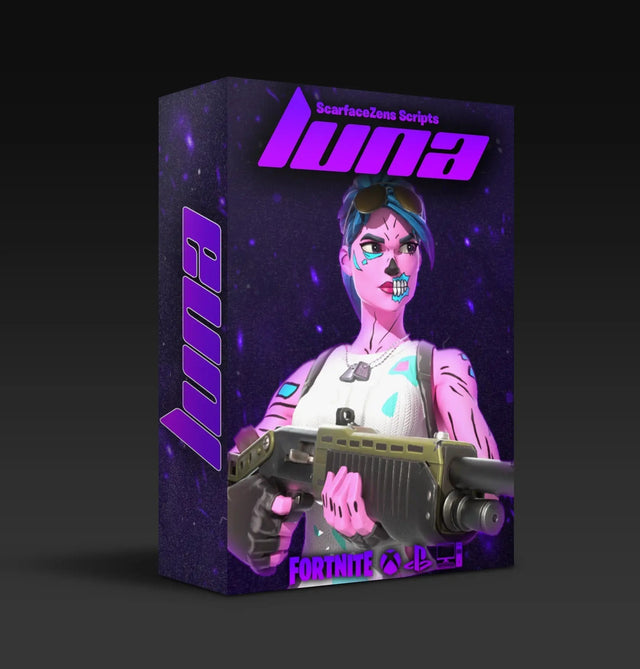
Luna Elite is the Fortnite build, with boosted aim assist across close, mid and long range on both Linear and Exponential curves, Silent Aim, anti-recoil, edit macros with three modes, a turbo pickup macro, rapid fire, hair triggers and crouch macros. It runs on PlayStation 4 and 5, Xbox, PC and Nintendo, and there is an on-device menu so you can retune without going back to a computer. At time of writing it is $49.99, down from a $58.99 compare-at price.
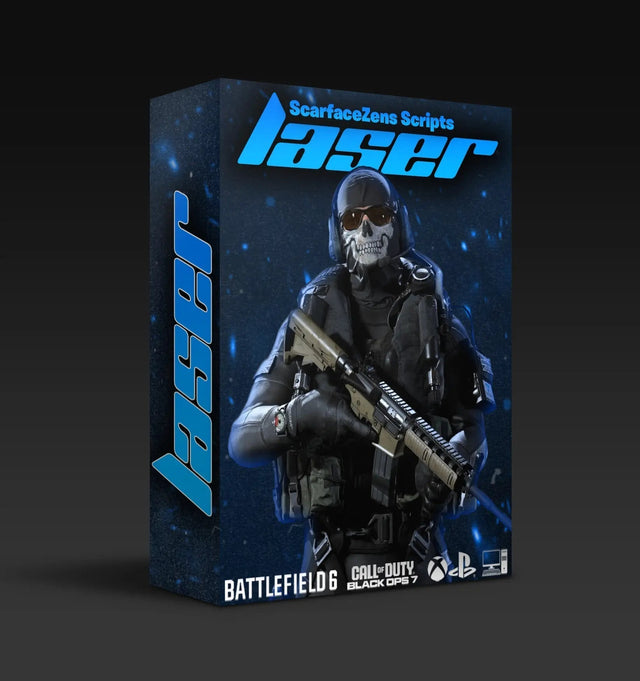
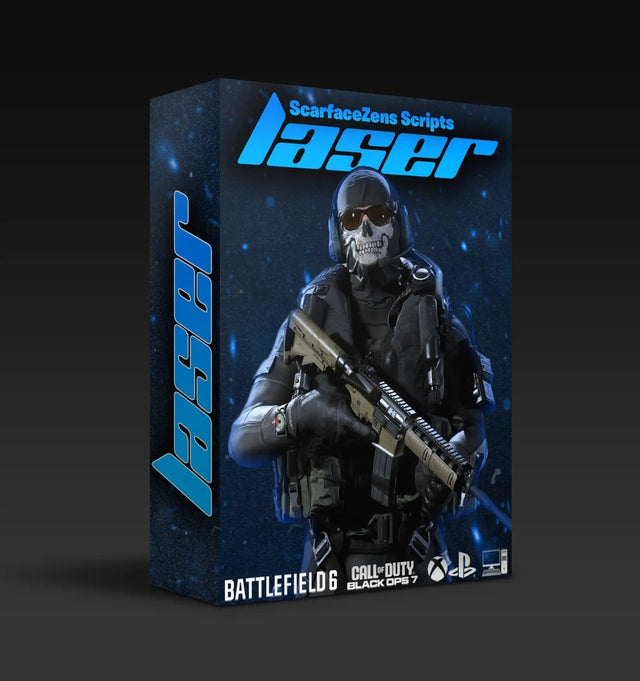
Laser Elite is the Call of Duty build for Black Ops 7 and Warzone, with per-weapon anti-recoil, aim assist boosting and full auto weapon detection so you are not switching profiles by hand. It also sits at $49.99 at time of writing. If you play basketball or survival instead, Nets covers NBA 2K27 and Scar-Rust covers Rust Console at the same price at time of writing, and all four live in the ScarZens script collection.
The usual objection is that a script costs as much as a decent game. The counter is on the product page rather than in a sales pitch: the Luna Elite listing currently shows 4.9 out of 5 from 903 customer reviews, the store lists 4,000+ customers worldwide, delivery is instant after checkout and every future update is included. If you would rather have a human watching over your first flash, the 30,000-member ScarZens Discord has setup guides and admins who answer platform-specific questions directly.
Still deciding which game to start with? Our overview of which Cronus Zen script to run for your game lays the four out side by side.
Cronus Zen setup FAQ
Do I need a Zen Link for PS5?
For a controller that stays connected on PS5, yes. Cronus documents full native PS5 support as coming through the Zen Link Wi-Fi expansion module, and notes that without one your controller will disconnect from the console. Xbox and PC do not need it.
Why does my console not detect the Cronus Zen at all?
Nine times out of ten the output protocol is wrong or the cable is in the wrong port. Open Zen Studio, check the Device panel shows the protocol matching your console, and confirm your console cable is on the console-facing port rather than PROG. Firmware that has never been updated is the next thing to check.
Can I use a mouse and keyboard alongside a controller?
Yes. Crossover devices such as a mouse, keyboard or keypad go into A3, with A2 available if you need a second one, and on Xbox an official Xbox controller must stay on A1 the whole time. If your devices are not being picked up at all, our Cronus Zen mouse and keyboard fix guide runs the full detection checklist.
How long does a first-time setup actually take?
Around fifteen to twenty minutes if you follow the order, most of which is the firmware update and the Zen Studio install. Loading a script on top of a working device takes a couple of minutes. People who spend an entire evening on it are almost always retrying controller setup on firmware they never updated.
Does the same setup work for every game?
The device setup does. Firmware, Zen Studio, registration and controller setup are identical whether you play Fortnite, Call of Duty, Rust or NBA 2K27. Only the script you load on top changes.
The short version
Firmware first, Zen Studio second, registration third, controller setup last. PS5 wants the Zen Link, Xbox wants the Xbox One X/S protocol with the controller on A1, and PC wants the PROG cable out before you launch. Everything else people call a broken Zen is usually one of those four things done out of sequence.
Our flagship scripts.
Luna Elite, Laser Elite, Nets and Scar-Rust. One purchase each, with free updates for life.
Browse the scripts