Zen Studio Beginners Guide: Every Panel Explained
Five working panels, and only one of them matters on day one. Here is what each Zen Studio panel does and how to get your first script into a memory slot.
 ScarZens Team
Sep 10, 2026
8 min read
ScarZens Team
Sep 10, 2026
8 min read

You bought a Zen, installed Zen Studio, and opened it to five tabs and a toolbar that assumes you already know what you are doing. Nothing on screen tells you which one loads a script. So you click around, nothing reaches the console, and you start wondering if the device is faulty.
It is not. Zen Studio has five working panels, and you only need one of them to get a script running: Programmer. That panel is where you drag a script onto one of the Zen's eight memory slots and write it to the device.
The other four handle scripting, device settings, mouse and keyboard translation, and browsing community code. You can ignore all of them on day one.
Load a script that is already tuned and skip the guesswork →
What is Zen Studio actually for?
Zen Studio is the desktop app that talks to your Zen over USB. It is how anything gets onto the device: scripts, GamePacks, remapper profiles, firmware settings and mouse and keyboard configuration. Without it the Zen is just a passthrough adapter.
One thing worth knowing before you go hunting for tutorials: Cronus now labels the Zen Studio section of its documentation as legacy. The panels described below are still what ships and still what you use, but expect the tooling around it to keep shifting, the way firmware updating already moved out to a browser tool.
What are the five Zen Studio working panels?
Switching between them is just the row of navigation tabs across the top. Here is what each one is for, in the order you are likely to need them.
| Panel | What it does | Need it on day one? |
|---|---|---|
| Programmer | Assigns scripts, GamePacks and remapper profiles to the Zen's memory slots | Yes |
| Device | Device settings, output protocol, slot management, factory reset, Device Monitor | Usually |
| Compiler | Code editor for writing and compiling your own GPC scripts | No |
| Library | Browse and download community GPC scripts from Cronus's online database | No |
| M&K Settings | Mouse and keyboard translation, sensitivity, deadzones, ballistic curves | Only if you play on mouse and keyboard |
Most people who get stuck are stuck because they opened Compiler, saw an IDE, and assumed running a script meant learning to code. It does not. Compiler is for authors, Programmer is for users.
How does the Programmer panel work?
The Zen ships with eight memory slots at 32KB each. Programmer is where you decide what lives in each one, and you can mix types freely: a GamePack in one slot, a purchased script in another, a remapper profile in a third.
The workflow is drag, drop, program. Pull your file into the slot you want, hit the program button, and wait for the device to confirm the write. Once it is written, the script lives on the Zen itself and runs with no PC attached.
If the GamePack list refuses to populate and you get a download error, that is almost always your ISP blocking the DNS Cronus uses rather than anything wrong with your device. A VPN clears it. Cronus documents this behavior on its official Zen Studio page.
Slot planning matters more than people expect once you own more than one script. Our guide to Cronus Zen memory slots covers how to run multiple games without reflashing every time you switch.
What does the Device panel control?
Device is the settings drawer, and there are three things in it worth finding early. The output protocol setting tells the Zen which platform to emulate, and it can run on auto or be pinned manually to a specific console. If your Zen works on one machine and not another, this is the first setting to check.
Second is the remote slot change shortcut. You bind a controller combination and then swap memory slots mid-session without reaching for the P1 button on the device. Anyone who plays two games in a night should set this up on the first day.
Third is Device Monitor, which shows live input and output from the Zen so you can see exactly what the device is sending. It only opens when the Zen is connected to your computer through the PROG port, not the CONSOLE/PC port. If the menu item is greyed out, you have the cable in the wrong socket, which is covered properly in our breakdown of Cronus Zen ports and which USB port does what.
The panel also holds erase memory slots and full factory reset. Both are useful when a device starts behaving strangely, and both wipe your work, so export anything you care about first.
Put per-weapon anti-recoil in slot one for BO7 and Warzone →
What are the Zen Studio plugins?
Three plugins sit under the Tools area and each has a keyboard shortcut. They exist so you can produce working scripts without writing a line of GPC.
- Max Combo (Alt+F1) records a sequence of button and stick inputs and converts it into a script. Built for fighting game combos and any long repeated input chain.
- Max Mapper (Alt+F2) remaps buttons, sticks and sensors through a visual interface, then exports the result as a script.
- Max Rec (Alt+F3) records a macro you can save, load, loop and share. Useful for simple repeated movement while you are away from the controller.
These are genuinely good tools for one-off jobs like moving crouch to a paddle. They are not a substitute for a properly tuned game script, because recording your own inputs cannot give you per-weapon recoil values or aim assist shaping. If you want the full breakdown of where that line falls, we cover it in our guide to Cronus Zen MAX REC and what it records.
How do you read the status bar?
The strip along the bottom of Zen Studio answers most support questions before you ask them. It splits into three sections and each one tells you something specific.
- Left: whether the Zen is connected and which firmware version it is running. Check here first when something does not work.
- Middle: the active operational mode. This section is clickable, which matters because Tournament Mode disables the compiler and blocks scripts and GamePacks entirely.
- Right: compiler status, cursor line and column, and whether insert is on. Only relevant if you are editing code.
Normal Mode is the default and the one you want. If your script vanished after a firmware update or a reset, glance at the middle section before you troubleshoot anything else.
Which script should you load once Zen Studio is working?
Zen Studio is the delivery mechanism. What you put through it is what decides whether the device is worth owning, and a poorly tuned script on a perfectly configured Zen still feels bad.
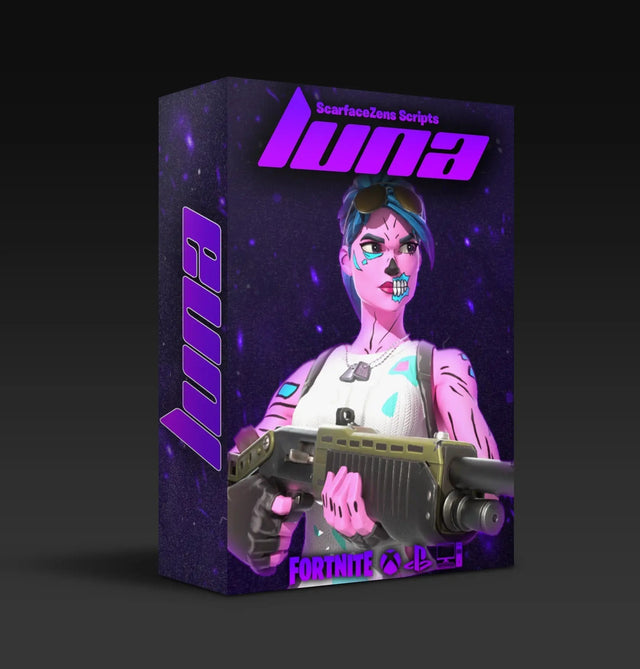
Luna Elite is our Fortnite script, built around Chapter 7's aim system. It runs boosted aim assist on both Linear and Exponential curves, Silent Aim, anti-recoil, edit macros with three modes, a turbo pickup macro, rapid fire, hair triggers and crouch macros. There is a menu on the Zen screen itself, so retuning does not mean finding a PC and reopening Programmer.
At time of writing it is $49.99, down from a $58.99 compare-at price, and the product page shows 4.9 out of 5 from 903 customer reviews with 4,000+ customers worldwide. It supports PlayStation 4 and 5, Xbox, PC and Nintendo Switch 1, and delivery is instant after checkout.
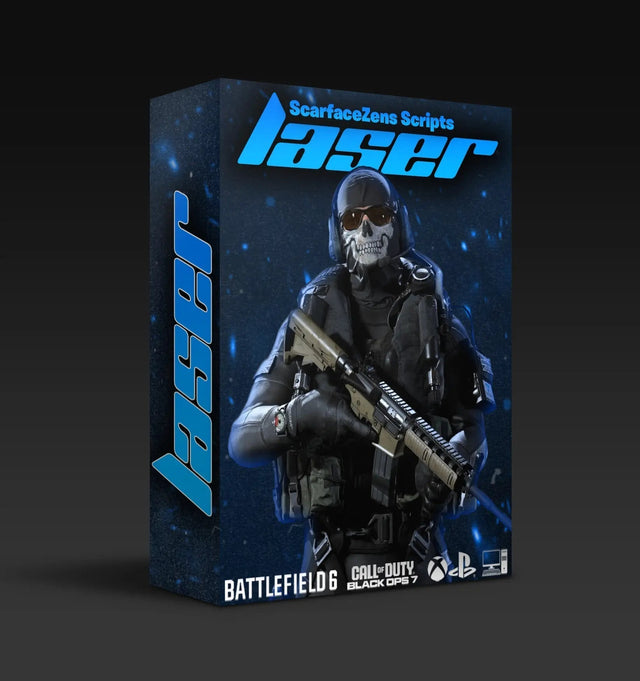
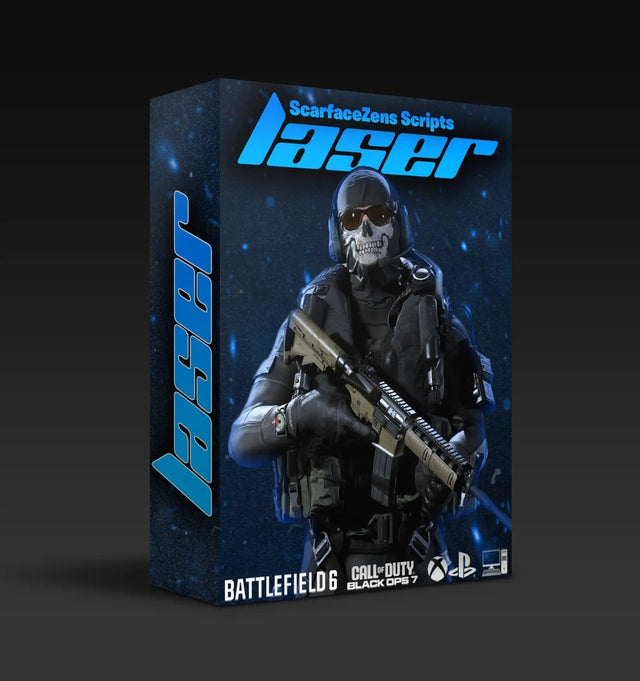
For Call of Duty, Laser Elite is tuned for Black Ops 7 and Warzone with per-weapon anti-recoil, aim assist boosting and full auto weapon detection, so you are not swapping profiles by hand every time you change loadout. It runs on PS5, Xbox and PC at $49.99 at time of writing. Basketball players get Nets for NBA 2K27, built around Auto Green and shot timing.
The obvious objection is that free community scripts exist in the Library panel and cost nothing. True, and some are fine for simple jobs. The difference is maintenance: a free script sits at whatever version its author last uploaded, while both scripts above include future updates with the copy you buy and 24/7 support behind them.
All four sit in the full ScarZens script collection. If you are not sure which one fits how you play, our overview of which Cronus Zen script to run for your game lays out the differences.
Setup questions get answered fastest by people who have already done it, and you can work through your first Zen Studio flash with the 30,000-member ScarZens Discord rather than guessing at it alone.
Zen Studio FAQ
Do you need Zen Studio open while you play?
No. Once a script is written to a memory slot it lives on the Zen and runs without a computer attached. You only need Zen Studio to change what is in the slots or to adjust device settings.
How do you update Zen Studio itself?
Zen Studio has a built-in update wizard under the Tools menu that checks online for the latest version. The check is manual rather than automatic, so it will not nag you, and it needs an internet connection to run.
Why is Device Monitor greyed out?
Because the Zen is not connected to your computer through the PROG USB port. Device Monitor needs that specific connection to read live input and output. Move the cable and the menu item becomes available.
Can you run more than one script at a time?
Not simultaneously, but you can keep up to eight loaded across the memory slots and switch between them. Set the remote slot change shortcut in the Device panel and you can swap without touching the device.
Do you need to know GPC to use a Zen?
No. GPC is the scripting language used in the Compiler panel, and it is only relevant if you want to write your own mods. Loading a purchased script or a GamePack happens entirely in the Programmer panel with drag and drop.
The short version
Learn Programmer, learn the Device panel, and glance at the status bar when something breaks. That covers roughly everything a normal user does in Zen Studio, and the remaining three panels are there for people writing their own code or running mouse and keyboard. The people who stay stuck for a week are usually the ones who opened Compiler first and concluded the whole device was above their level.
Our flagship scripts.
Luna Elite, Laser Elite, Nets and Scar-Rust. One purchase each, with free updates for life.
Browse the scripts