Cronus Zen Compatible Controllers: What Actually Works
Official pads work, third-party pads usually need fixing in their own app. The full Cronus Zen controller compatibility list, wired and wireless.
 ScarZens Team
Sep 19, 2026
8 min read
ScarZens Team
Sep 19, 2026
8 min read

You bought a Cronus Zen, plugged in the controller you already own, and the screen just sits there. Or it runs fine for ten minutes and then drops mid-fight. Before you blame the device or the script, find out whether the Zen actually talks to that controller.
First-party pads are the safe list: DualSense, DualSense Edge, DualShock 4, every Xbox controller, the Switch Pro Controller, Joy-Cons and the Astro C40. Third-party controllers are where setups fall over, and the fix is almost always a setting inside the controller's own companion app rather than anything on the Zen.
Below is the wired list, the wireless list, the extra hardware each one needs, and a test that tells you which half of your setup is actually broken.
Get Laser Elite running on your controller today →
Which controllers are compatible with the Cronus Zen?
Cronus documents support by controller family rather than by model number, which is why you rarely find your exact pad on a list. The short version is that anything official for PlayStation, Xbox or Switch is covered. Here is what each one needs.
| Controller | Wired | Wireless requirement |
|---|---|---|
| DualSense, DualSense Edge, DualShock 4 | A1 port | Zen's own Bluetooth. PS5 console play also needs the ZenLink module |
| Xbox controllers, all models | A1 port | Xbox wireless adapter, sold separately |
| Switch Wireless Pro Controller | A1 port | Zen's own Bluetooth |
| Switch Joy-Cons | Not applicable | Zen's Bluetooth, paired one side at a time |
| Astro C40 | A1 port | Zen's own Bluetooth |
| Third-party pads | A1 port, often with controller-side changes | Not documented as supported |
Wired is the default route and the one worth starting on. Connect the Zen to your console with the short USB cable, put the controller into A1, power it on and tap the small reset button. If you are running a controller from one brand on another brand's console, that is a separate procedure covered in our Cronus Zen crossover controller setup guide.
What does going wireless actually cost you?
Wireless works, but it is not free. Each platform wants something different from you, and one feature disappears across the board.
- PlayStation pads connect straight to the Zen's built-in Bluetooth. Press the P2 button until the RGB LEDs flash blue, then hold Share and PS on the controller until the lightbar flashes.
- Xbox pads need Microsoft's wireless adapter, which is a separate purchase. The adapter goes into A3 and the controller sits in A2 while pairing, then you pull the A2 cable once it holds.
- Switch Pro pairs like the PlayStation pads, using the P2 button and the sync button on the controller.
- Joy-Cons need the emulator output protocol set to Nintendo Switch in Zen Studio first, then each side pairs separately.
- Everything wireless loses controller audio. No headset through the pad, no speaker, no mic.
That last point catches out more people than the pairing itself. If you play with a wired headset plugged into your controller, wireless is a downgrade you will notice in your first squad game. Stay wired unless you have a specific reason not to.
Why do third-party controllers stop working?
This is the real answer to most compatibility complaints, and the GameSir G7 HE and G7 SE are the clearest documented case. After a Cronus firmware update, those pads stopped working when connected directly to the Zen. Cronus publishes two routes back.
The first is rolling the controller's own firmware back to an older version. The second needs no downgrade at all and lives entirely inside GameSir's Nexus app. Open Nexus, update it, select Profile 1, hit Configure, then open the Sticks section.
Set the range "initial" value to 0 for both sticks and turn raw mode on for each. Move both sticks around until the X and Y readings settle at 0.00%, then confirm. Drop the polling rate to 250Hz or 500Hz while you are in there, because 1000Hz is the setting that tends to break things.
After that, connect the Zen to the console, wait about five seconds, put the controller into A1 and tap reset. Green RGB means you are through. The full walkthrough for both routes sits on the official Cronus GameSir fix page.
The broader lesson applies to any aftermarket pad. When a controller has its own configuration app, that app is usually where the problem lives, because it is remapping or scaling stick output before the Zen ever sees it. For the G7 specifically, our Cronus Zen GameSir fix guide walks through both methods in full, including the PS5 route.
Run Nets for Auto Green on NBA 2K27 →
Is it the controller or the Zen?
Guessing here wastes days. Cronus builds a proper test for this, and it checks your firmware, USB ports, cables and Zen Studio in one pass. Work through it on a Windows PC.
- Get current first. Update the firmware and install Zen Studio before anything else, since half of all "dead controller" reports are just old firmware.
- Connect both cables. Run the CONSOLE/PC cable and the programming cable from the Zen to your computer, and confirm Zen Studio sees the device.
- Reset, then plug in. Press the reset button, count to five, then connect the controller to A1.
- Set the output protocol in Zen Studio to match the controller type you are testing.
- Open the device monitor with F3 and press buttons. Every input should register on screen as you press it.
- Confirm outside Zen Studio. Unplug the programming cable, tap reset, and check the controller in a browser gamepad tester.
Watch the indicators while you do it. The joypad and console icons lighting up means the Zen has accepted the controller, and the RGB LEDs go solid green for Xbox output or stay off for PlayStation. If the device monitor sees your presses but the game does not, the problem is downstream in your console setup rather than the controller.
If the device monitor sees nothing at all, our Cronus Zen not detecting controller checklist takes it from there. When you would rather ask someone who has already solved it on your exact pad, the 30,000-member ScarZens Discord has setup threads sorted by controller and console, and the team answers there directly.
Which script should you run once the controller is sorted?
A working controller is the floor, not the ceiling. The Zen only earns its keep once a tuned script is sitting on it, and which one depends entirely on what you play.
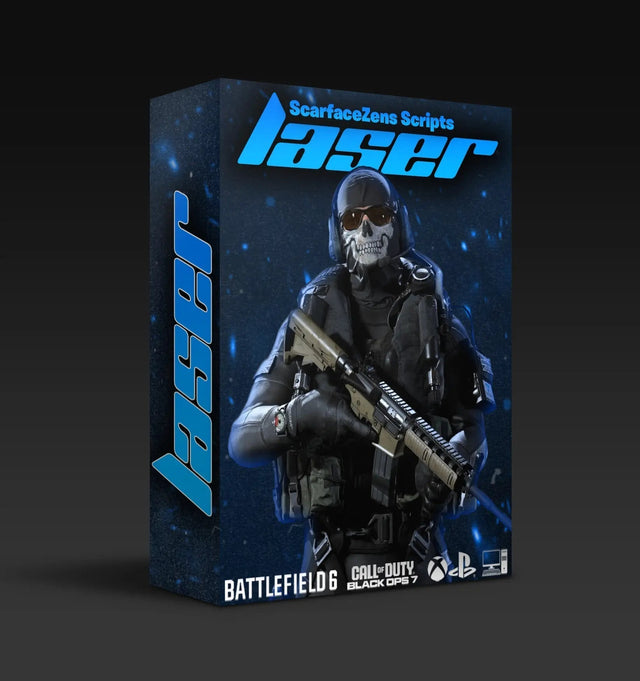
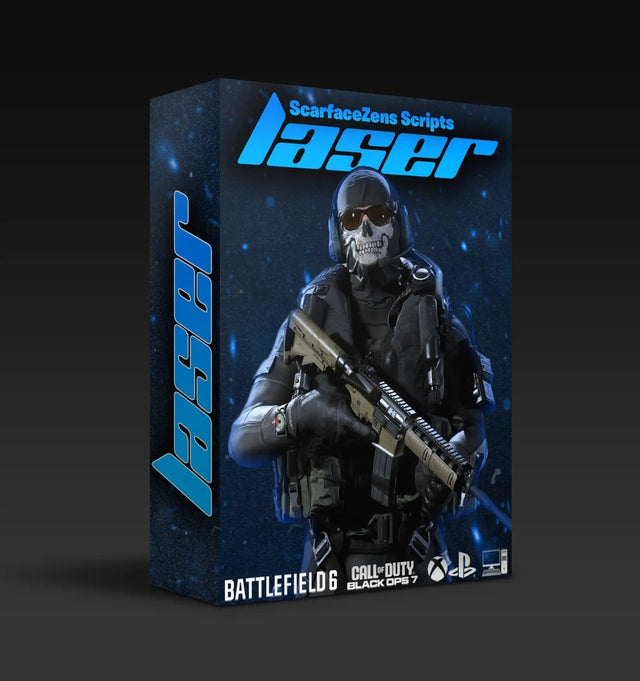
Laser Elite is the Call of Duty option, tuned for Black Ops 7 and Warzone and working across most other FPS titles. It runs aim assist boosting mods, per-weapon anti-recoil with adjustable values, movement mods and full auto weapon detection, so profiles switch as you switch guns instead of you doing it by hand. At time of writing it is $49.99, down from a $58.99 compare-at price, and it runs on PlayStation 4 and 5, Xbox and PC.
Nets covers NBA 2K27 with Auto Green, Auto Tempo and stamina mods, and Scar-Rust handles Rust Console anti-recoil. Both sit at the same $49.99 at time of writing. All of them live in the full ScarZens script collection if you want to compare them properly.
The obvious objection is buying a script before you have proven your controller works. Fair, and the order matters: get the pad detected in the device monitor first, because a script cannot fix a controller the Zen never saw. Once that is done, our guide to which Cronus Zen script to run for your game covers the choice properly.
For what it is worth on the trust question, the Laser Elite product page currently shows 4.9 out of 5 from 625 customer reviews, and the store lists 4,000+ customers worldwide.
Cronus Zen controller compatibility FAQ
Does the Cronus Zen work with any controller?
It works with official PlayStation, Xbox and Nintendo controllers, plus the Astro C40, either wired or wirelessly. Third-party pads are a case-by-case situation and are not covered as a group. If yours has its own configuration app, expect to change a setting in there before the Zen accepts it.
Do I need the ZenLink module?
Only for wireless PlayStation controller use on a PS5 console. Wired PS5 play does not need it, and neither does wireless pairing on PC. Xbox wireless needs Microsoft's own adapter instead, which is a different piece of hardware.
Why does my GameSir controller stop working after a firmware update?
The documented cause for the G7 HE and SE is how the controller reports stick range once Zen firmware moves on. Setting both stick range initial values to 0 with raw mode enabled in the Nexus app resolves it without downgrading anything. Dropping the polling rate below 1000Hz helps too.
Can I use two controllers at once?
Yes, and that is exactly how crossover setups work. The authenticating controller goes into A1 and the controller you actually play with goes into A3. The console sees the A1 pad and accepts input from the A3 one.
Does a wired connection perform better than wireless?
Wired is the more predictable option and it keeps controller audio alive, which wireless does not. Wireless is fine for plenty of players, but if you are chasing consistency in ranked, remove the variable. Start wired and only go wireless once everything else is stable.
The short version
Official pads work, wireless costs you controller audio and sometimes extra hardware, and third-party controllers usually need fixing in their own app rather than on the Zen. Run the device monitor test before you buy anything or blame anything. Once the pad registers cleanly, the script is what turns the hardware into an advantage.
Our flagship scripts.
Luna Elite, Laser Elite, Nets and Scar-Rust. One purchase each, with free updates for life.
Browse the scripts