Cronus Zen GameSir Not Working? G7 Fix Guide
Your GameSir G7 works on the console but dies on the Zen. Here are both official fixes, in order, plus how to prove the controller is through.
 ScarZens Team
Sep 26, 2026
8 min read
ScarZens Team
Sep 26, 2026
8 min read

Your GameSir G7 works perfectly plugged straight into the console. Plug it into the Cronus Zen and you get nothing: no power-up, no inputs, no controller icon anywhere in Zen Studio. This hits the G7 HE and G7 SE specifically, it started after a Cronus firmware update, and there is an official fix for it.
The short version: update the controller in the GameSir Nexus app, zero out both stick ranges with raw mode enabled, then connect the Zen to your console first, wait five seconds, and only then plug the controller into the A1 port. Tap the small reset button on the Zen and wait for the RGB ring to go green. If it still refuses to wake up, the second method flips the controller into mirror mode instead, and that one clears most of the stubborn cases.
Both procedures are documented by Cronus, so neither is a workaround someone invented on a forum. Work through them in order and you will know inside ten minutes whether the controller is the problem or something further down the chain is.
See every ScarZens premium script once your controller is talking to the Zen →
Why did my GameSir stop working with the Cronus Zen?
The G7 HE and G7 SE stopped being recognized when connected directly to the Zen after a firmware revision on the Cronus side. Nothing broke in your controller, and nothing broke in your Zen. The two devices simply stopped agreeing about how the handshake should go.
Two details make it worse than a normal compatibility hiccup. The G7 reports stick values in a way the Zen reads as constant movement, and the controller tries to negotiate power before the Zen is ready to supply it. Fixing either one on its own is often enough, which is why there are two separate methods rather than one.
Worth knowing before you start: the G7 exposes several controller modes, and they are not equivalent. Xbox 360 mode has no Share button and Xbox One mode has no Xbox button, which matters because the button combination in the second fix needs both.
Fix 1: Zero the stick range in GameSir Nexus
This is the one to try first because it needs no firmware downgrade and no console-side changes. You are telling the controller to report raw, uncentered stick data so the Zen stops seeing phantom input.
- Install or update the GameSir Nexus app so you are on the current version.
- Open the profiles button and make sure Profile 1 is the highlighted one, then choose configure.
- Pick the sticks tab along the top.
- Set the left stick range starting value to zero and switch raw mode on.
- Do the same for the right stick: starting value zero, raw mode on.
- Wiggle both sticks until each axis reports zero, then press A to lock it in.
- Plug the Zen into your console over USB and count five full seconds before touching anything else.
- Connect the GameSir to the A1 port on the Zen.
- Tap the Zen reset button and wait for the RGB lights to settle on green.
That five-second pause is the step people skip, and skipping it is what leaves the controller dead on arrival. The Zen needs that window to finish negotiating with the console before a power-hungry controller joins the party. Green lights mean the pairing went through.
Fix 2: Switch the G7 into mirror mode
If the stick fix did not do it, this method changes how the controller identifies itself. Start with every cable unplugged and the Device tab open in Zen Studio so you can watch what happens.
Set the controller polling rate to 250Hz or 500Hz before anything else, and stay off 1000Hz. Then update the controller firmware through the Nexus app. High polling rates are a common cause of the Zen dropping the controller mid-handshake.
- Open Nexus and connect the controller without pressing any buttons on it.
- Hold Xbox and Share together until Windows plays its disconnect sound or the screen flashes.
- Run the top USB into the Zen and use the prog port on the right side.
- Connect the controller to the Zen and give it a moment to power up.
- Hold Xbox and Share again for two or three seconds, until the Xbox logo and the controller icon both appear.
- Set the input mode to mirror mode.
- Open Device Monitor in Zen Studio and confirm your inputs register.
Device Monitor is the part that turns guesswork into an answer. If your stick and trigger movements show up there, the controller is through and any remaining problem lives in your script or output protocol. If the panel stays dead, the handshake never completed and the combination needs another go.
Remember the mode limitation here. You can cycle the controller between its modes by holding Xbox and Share while Device Monitor is open, which is how you escape a mode that is missing the button you need.
Using a GameSir on PS5
PlayStation adds one requirement that catches people out. A PS5 needs an authentication step before it will accept anything other than an official pad, so run the PS5 controller bypass first using a DualSense or DualSense Edge.
After that, the sequence differs slightly from the Xbox route. Connect the GameSir to your PC and hold PS and Menu until Windows plays the disconnect sound. Plug it into the A3 port on the Zen, then hold PS and Menu again for two or three seconds until it connects.
The A3 port is not arbitrary. On the Zen, A1 carries the authenticating controller and A3 takes the crossover controller, which is exactly the arrangement you are building here. Getting those two backwards produces the same dead controller you started with.
Which fix should you try first?
| What you are seeing | Start here |
|---|---|
| Controller never powers on at all | Fix 1, and respect the five-second pause |
| Powers on, but no inputs register | Fix 2, mirror mode |
| Aim drifts on its own with no stick input | Fix 1, raw mode on both sticks |
| Works on Xbox, dead on PS5 | Run the PS5 bypass, then use A3 |
| Button combo does nothing | Wrong controller mode, cycle it in Device Monitor |
If none of these describe your situation, the controller may not be the culprit. Our walkthrough for when the Zen is not detecting your controller covers the cable, port and protocol causes, and the rundown of Cronus Zen compatible controllers tells you whether your pad was ever a good fit.
The controller connects but the script does nothing
Plenty of people arrive here thinking GameSir is the problem when the real gap is the script itself. A controller that shows clean input in Device Monitor has done its job, and anything still missing is a slot, protocol or script issue. That is a different fix, and a much faster one.
This is also where the honest objection lands: if you paid for a script, why are you configuring controller firmware at all? Because the script controls what the Zen sends to the game, and none of that reaches the game until the controller is recognized. One is the engine and the other is the ignition.
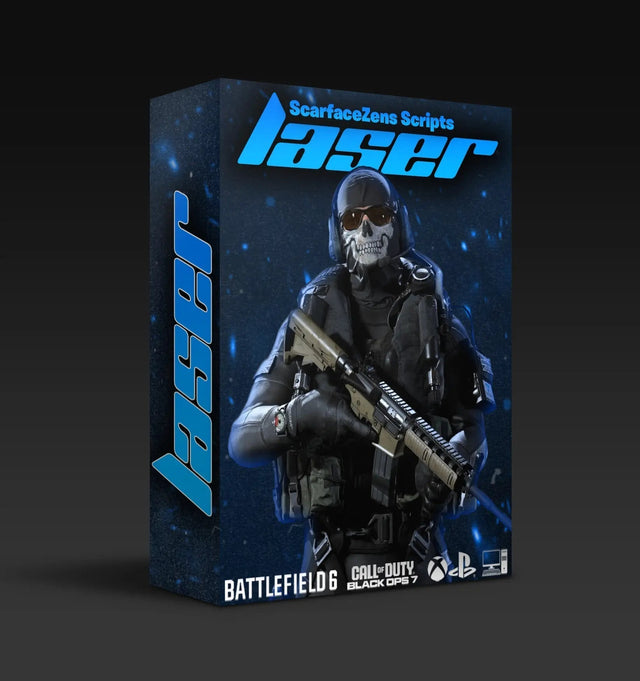
For Call of Duty, Laser Elite runs per-weapon anti-recoil with adjustable values across Black Ops 7 and Warzone loadouts, plus full automatic weapon detection so you are not switching profiles by hand. It runs on PS5, Xbox and PC, and it sits at $49.99 at time of writing. Its product page shows 4.9 out of 5 from more than 2,100 reviews, with the store reporting over 4,000 customers worldwide.
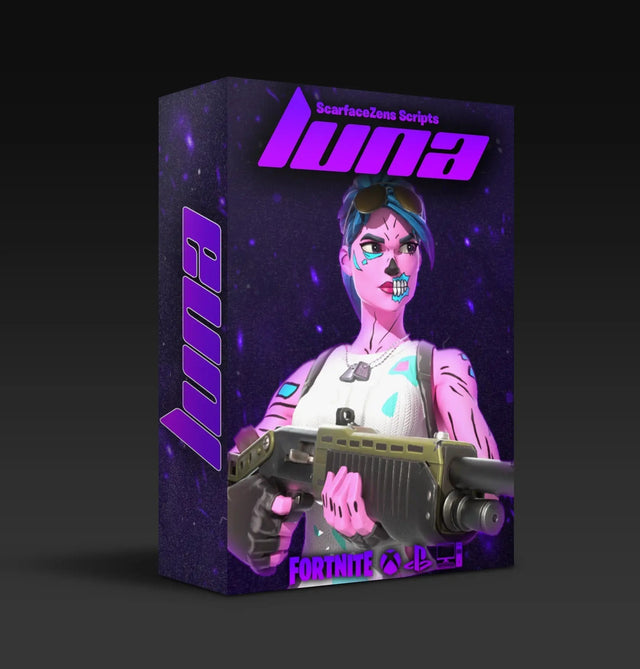
Fortnite players want Luna Elite instead, built around Chapter 7's aim system with aim features, macros and round-the-clock support, also $49.99 at time of writing. Rust Console players have Scar-Rust at the same $49.99 at time of writing, with plug-and-play anti-recoil covering every weapon.
Get Laser Elite and stop fighting your recoil in BO7 and Warzone →
Stuck partway through either method? The fastest route is usually someone who has already done it on your exact controller revision, and there are around 30,000 people in the ScarZens Discord who troubleshoot Zen setups daily, including plenty of G7 owners. Bring a photo of your Device Monitor panel and you will get an answer in minutes.
Not sure which title to buy for? Our breakdown of which Cronus Zen scripts to run for your game lays out what each one handles.
Frequently asked questions
Does every GameSir controller have this problem?
The Cronus documentation names the G7 HE and the G7 SE as the affected models. Other GameSir pads may connect without any of this, and some may need the same treatment. If yours powers up and registers in Device Monitor on the first try, you have nothing to fix.
Do I have to downgrade my Zen firmware?
No. Both methods described above avoid a downgrade entirely, which is why they are the ones worth running first. Staying current on firmware also keeps you aligned with whatever Zen Studio expects.
Why does the five-second wait matter so much?
Connecting the controller too early means it tries to draw power while the Zen is still establishing its link to the console. The result is a controller that never powers on, which reads like a hardware fault. Waiting five seconds after the Zen reaches the console removes that collision.
My inputs work but my aim feels floaty after the fix
Raw mode changes how stick data is reported, so values tuned before the fix may need revisiting. Start with your deadzone and sensitivity rather than assuming the script broke. A short session in Device Monitor will show you exactly what the Zen is receiving.
Where can I check the official steps myself?
Cronus publishes the procedure on its own GameSir fix page, and it is worth opening alongside this guide. Hardware documentation shifts as firmware moves, so the official page is the version that stays current. Accurate as of September 2026.
Our flagship scripts.
Luna Elite, Laser Elite, Nets and Scar-Rust. One purchase each, with free updates for life.
Browse the scripts