How To Set Up a Fortnite Cronus Zen Script (Full Guide)
The full first-time setup: firmware, Zen Studio, slots, platform connection order, and the tuning pass most people skip.
 ScarZens
May 6, 2026
6 min read
ScarZens
May 6, 2026
6 min read

Most Fortnite Zen problems are not script problems. They are setup problems that show up later as drifting aim, a controller the Zen refuses to see, or a script that compiles and then does nothing in game.
Get the order right once and it stays right. The whole job is four stages: update the device, load the script to a slot, connect in the correct order for your platform, then spend ten minutes in Creative before you take it into a real match.
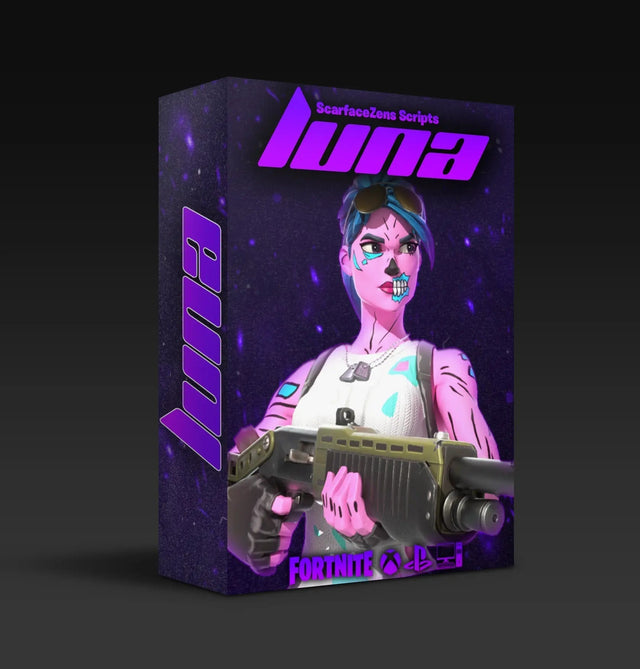
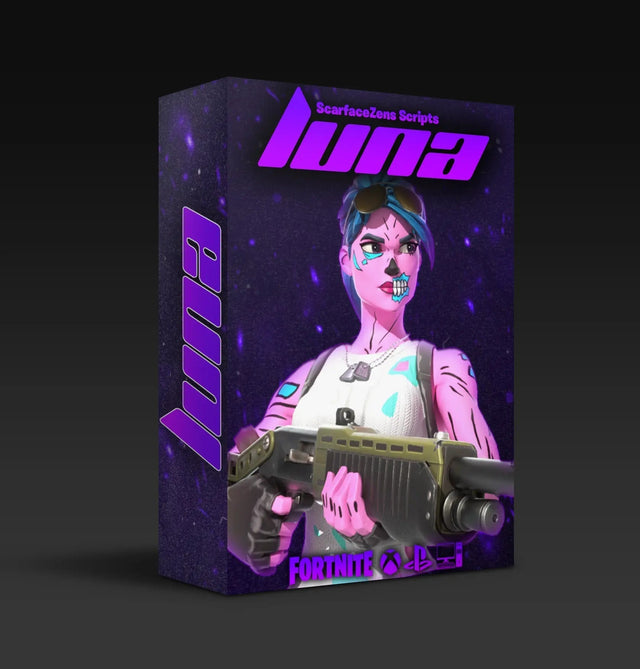
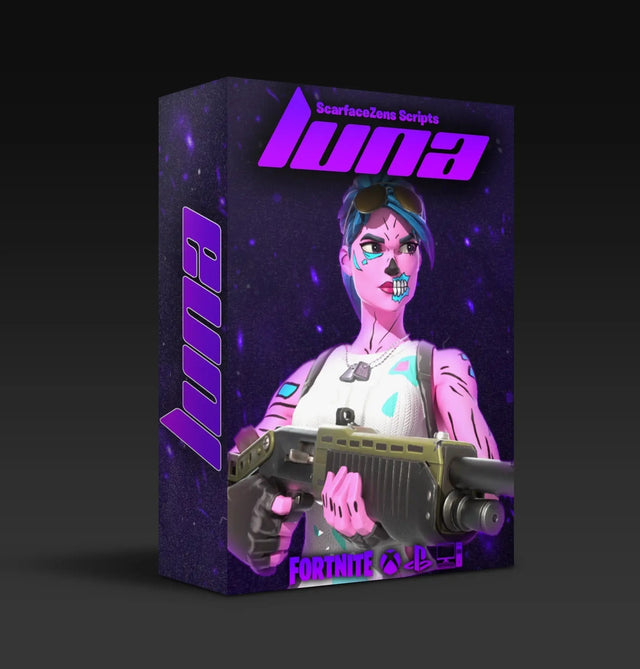
Which script to load: Luna Elite is the best Fortnite Cronus Zen script we build, and it is the one this guide uses as the example. It ships with values already tuned for Chapter 7, so stage four is a check rather than a configuration session.
$49.99 USD at time of writing, down from $58.99. 4.9/5 across 903 reviews, instant delivery after checkout, lifetime updates. See what is included →
What you need before you start
- A Cronus Zen device, bought separately from the script
- Access to a Windows or Mac computer, once. Zen Studio does not run on a console, and this is a Cronus requirement rather than a ScarZens one
- A USB data cable for the PROG port. Charge-only cables are the single most common reason a Zen will not connect to Zen Studio, and they look identical to data cables
- A second cable for your controller into the Zen's Input port
- Your script file
Stage 1: Update firmware and Zen Studio
Do this before anything else. Mismatched firmware and Zen Studio versions cause compile errors and erratic timing that look exactly like a broken script.
- Install Zen Studio on your computer and open it.
- Connect the Zen to the computer using the PROG port, not the Input or Output port.
- Let Zen Studio update both itself and the device firmware. Accept both prompts.
- Wait for the device to re-appear in Zen Studio before unplugging anything.
If Zen Studio does not see the device at all, swap the cable before you troubleshoot anything else. That fixes it more often than any other step.
Stage 2: Load the script into a slot
The Zen holds multiple scripts across separate memory slots, so if you play more than one game you are switching slots rather than reflashing every time.
- Open the script file in Zen Studio.
- Compile it. A clean compile reports no errors. If it throws one, you are almost always on outdated firmware, so go back to stage one.
- Drag the compiled script into a numbered slot on the device.
- Note which slot number you used. You will need it to switch scripts later.
Give each slot an obvious name if Zen Studio lets you. Six months from now "slot 3" means nothing.
Stage 3: Connect in the right order
This is where most first-time setups fail, and the order genuinely matters. Ports first: the Zen's Output goes to the console, the Input takes your controller. Reversed is a surprisingly common cause of nothing working.
Use a rear USB port on the console rather than a front port or a hub. Front ports and unpowered hubs share bandwidth and drop packets.
PlayStation 5 and PlayStation 4
- Plug the Zen's Output into a rear console USB port. Wait for the Zen to power up.
- Plug your DualSense or DualShock into the Zen's Input port with a data cable.
- Wait for the controller to be recognized by the Zen before pressing anything.
- Press the PS button to start the session.
Xbox
- Plug the Zen's Output into a rear console USB port.
- Connect your controller to the Zen's Input port with a data cable.
- If you use a wireless Xbox controller, it needs to be paired to the Zen rather than the console.
PC
- Plug the Zen's Output into a rear motherboard USB port, not a case front panel port.
- Connect your controller to the Input port.
- Confirm Windows sees a single controller. Two detected devices means something is connected twice and Fortnite will read whichever it finds first.
Wired beats wireless throughout. Bluetooth adds latency at every link in the chain and introduces dropouts that read as stutter. If your aim already feels a beat late, our guide on Cronus Zen input delay in Fortnite covers the cable, port and polling fixes that account for most of it.
Stage 4: The Creative pass
Do not take a fresh setup straight into ranked. Ten minutes in Creative tells you whether the tracking suits your sensitivity, and it costs nothing.
Check three things in order:
- Flick test. Aim at a wall and flick left and right without shooting. The camera should move the instant your thumb does. Any visible gap is a connection problem, not a tuning problem, so go back to stage three.
- Tracking test. Strafe past a target while holding aim. Tracking should hold through the movement without shaking or snapping.
- Recoil test. Hold a full spray on a wall at mid range. The pattern should stay flat rather than drifting below the point you aimed at.
Luna Elite ships tuned for Chapter 7, so on most setups all three pass with no changes. If one fails, change a single value, retest, and only then move to the next. Changing three things at once tells you nothing about which one mattered.
Get Luna Elite and start on pre-tuned values →
In-game settings worth checking
- Aim assist strength at 100 in Advanced Options. A script shapes what the game gives it rather than replacing it, so turning the game's own assist down works against you.
- Deadzone low but not zero. Too low and stick drift registers as phantom input, which people misdiagnose as script jitter.
- Performance Mode on console, for the higher and more stable frame rate.
- Wired internet over Wi-Fi. Packet loss produces rubber-banding that feels identical to input delay but starts on your network.
Common setup mistakes
| Symptom | Usual cause |
|---|---|
| Zen Studio will not see the device | Charge-only cable, or wrong port on the Zen |
| Script throws a compile error | Firmware and Zen Studio out of sync |
| Controller not detected in game | Connection order, or controller paired to console instead of Zen |
| Script loads but nothing happens | Wrong slot selected on the device |
| Aim feels heavy or sticky | Values too aggressive, not latency |
If the Zen is not seeing your controller at all, that has its own diagnosis path in Cronus Zen not detecting controller. If everything worked yesterday and broke after a Fortnite patch, go to the post-update checklist instead, because the fix order is different.
For anything that survives all of this, setup help in the ScarZens Discord is the fastest route. There are 30,000+ members and your exact console and controller combination has almost certainly been solved there already. There are also walkthrough videos on the Scarface Zens YouTube channel.
FAQ
Why is my Fortnite Cronus Zen script not working?
In order of likelihood: outdated firmware, a charge-only cable, the wrong slot selected, or connecting the controller and console in the wrong order. Work through those four before you touch any script values.
Do I need a PC to use a Cronus Zen?
You need access to a computer once, to install Zen Studio and load the script onto a slot. After that the Zen runs standalone on your console.
Should I copy someone else's Cronus Zen settings?
Start from the values your script ships with rather than a config from a video. Aim assist and anti-recoil interact with your in-game sensitivity and deadzone, so a stranger's numbers are tuned to a setup that is not yours.
How long does setup actually take?
About fifteen minutes the first time, including firmware. Roughly thirty seconds after that, since the script stays on the device.
Which script should I load for Fortnite?
Luna Elite, our premium Fortnite script for Chapter 7. There is a fuller breakdown of what to look for in the best Fortnite Cronus Zen script guide, and the rest of the range is on the All Cronus Zen Scripts page.
Our flagship scripts.
Luna Elite, Laser Elite, Nets and Scar-Rust. One purchase each, with free updates for life.
Browse the scripts