Is Your Cronus Zen Script Working? How to Check
Your script is flashed but the game feels the same. Device Monitor in Zen Studio tells you in thirty seconds whether it is actually running, and what to fix if it is not.
 ScarZens Team
Sep 23, 2026
7 min read
ScarZens Team
Sep 23, 2026
7 min read

You paid for a script, flashed it to your Zen, loaded into a match, and nothing felt any different. Now you are guessing whether it failed to load, went to a slot you are not on, or is running perfectly and you just cannot feel it yet.
There is a tool built into Zen Studio that settles this in about thirty seconds, and most people never open it.
How do you know if your Cronus Zen script is working?
Connect the Zen to your computer with the mini USB cable in the PROG port, open Zen Studio, and launch Device Monitor. Look at the Active Slot readout in the status area.
If it shows the name of your script, the script is loaded and the Zen is running it. If it shows 0, nothing is active, and your problem is loading, not tuning. Everything below is how to read the rest of that screen.
See which ScarZens script belongs in that slot →
Opening Device Monitor the right way
Device Monitor only works while the Zen is physically wired to the computer through the PROG port. That is the small mini USB port, not the one your console cable lives in.
Your console does not need to be connected for this. If it is unplugged, Zen Studio lets you pick an output protocol to emulate so you can still watch the script behave.
This matters because a lot of people try to diagnose a dead script with the Zen still hanging off the console and no PC in sight. You get no readout that way, so you end up guessing.
Reading the Active Slot field
Active Slot is the single most useful number on the screen. It names whatever script or gamepack the Zen has live right now.
A named slot means the file is on the device and executing. A 0 means the Zen is passing your controller straight through with nothing applied.
What each Device Monitor panel actually tells you
The screen looks busy on first open, but only a handful of fields matter when you are chasing a dead script.
| Area | What it shows | What it proves |
|---|---|---|
| Active Slot | The loaded script name, or 0 | Whether anything is running at all |
| Input area | Live buttons, sticks and sensors from your controller | The Zen can see your controller |
| Output area | Values after the script has processed your input | The script is changing something |
| CPU Load | How hard the Zen is working, under 80% is healthy | The device is not choking |
| VM Speed | Script cycle speed, adjustable from 1 to 40ms, 10ms by default | How often the script re-evaluates |
| USB and Bluetooth inputs | Up to three USB and two Bluetooth devices, with VID and PID | Which controller the Zen actually latched onto |
The Input and Output areas are the pair worth watching. Input is your raw controller, Output is what the console receives after your script has had its turn.
Hold a trigger and pull down on an anti-recoil script. If the Output stick value moves while your thumb sits still, the script is doing its job.
The Output area also carries six debug fields that scripts use to report values back to you. A well built script will push its current mode or setting into those fields so you can confirm your changes landed.
Four reasons a loaded script still does nothing
Active Slot showing a name and the game feeling identical is the most common version of this complaint. There are four usual causes, in rough order of how often they turn out to be the answer.
- Tournament Mode is switched on. This mode shuts off scripts, macros and gamepacks at the device level while leaving crossover controller support and button remapping alive. You can spot it by the letters TE sitting next to the firmware version, and you turn it off under Tools, then Zen Operational Mode. Our full walkthrough on Cronus Zen Tournament Mode and why your script will not run covers the toggle in detail.
- The script is in a slot you are not on. The Zen holds several scripts at once and only runs the active one. You can jump slots from the controller with a button combination, Xbox plus View or Xbox plus LS on Xbox pads, PS plus Share or PS plus L3 on PlayStation pads. If you keep more than one script flashed, read up on running multiple Cronus Zen scripts across memory slots first.
- The controller is in the wrong port. If the Input area is blank when you press buttons, the Zen never saw the pad. Check the VID and PID fields to confirm which device it grabbed.
- The script is running at defaults. Plenty of scripts ship with mods off or values low so nothing feels dramatic out of the box. The Output area will still move, just not enough for you to notice mid fight.
If you want to see the official field descriptions alongside this, Cronus publishes a Device Monitor reference page that lists every readout.
A thirty second check before you blame the script
- Zen wired to the PC through the PROG port, Zen Studio open
- Device Monitor launched and showing live data
- Active Slot naming your script instead of showing 0
- Input area reacting when you press buttons
- Output area moving when the script should be firing
- CPU Load comfortably under 80%
- No TE marker next to the firmware version
Run that list top to bottom and you will know which half of the problem you have. Either the script is not reaching the console, or it is reaching the console and needs tuning.
Load Luna Elite and watch the Output area move →
Which script should be sitting in that slot?
The check above is only worth running if the script in the slot is built for the game you are loading into. Our rundown of which Cronus Zen scripts to run for your game maps each title to its build. All three below are $49.99 at time of writing, down from $58.99.
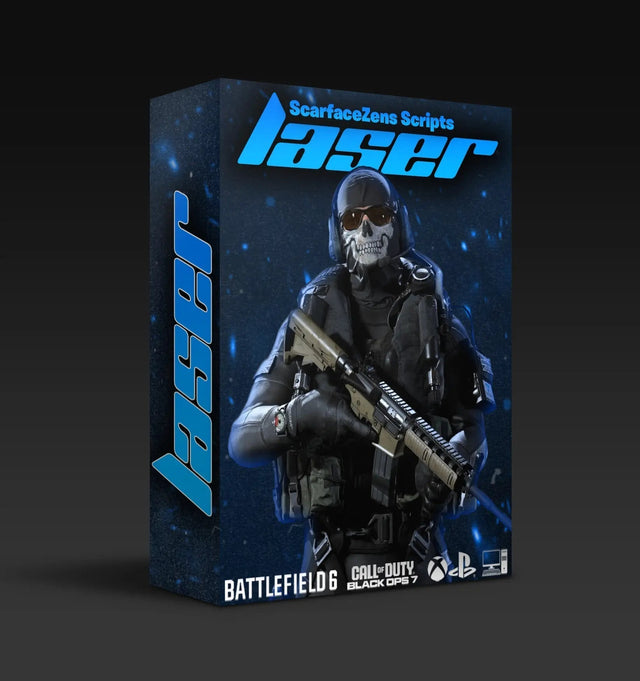
Laser Elite is the Call of Duty build, tuned for Black Ops 7 and Warzone and usable across most other FPS titles. Its product page lists aim assist boosting mods, per weapon anti-recoil with adjustable values, and full auto weapon detection so you are not switching profiles by hand. It runs on PS5, Xbox and PC.
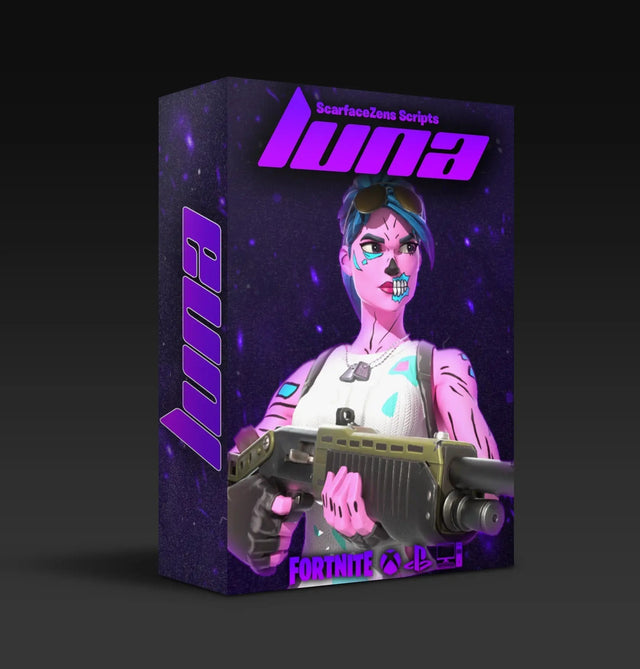
Luna Elite is the Fortnite build for Chapter 7, with aim features, movement and pickup macros, and anti-recoil across the weapon pool. Nets covers NBA 2K27 with Auto Green, Auto Tempo and stamina mods.
The objection we hear most is that people have paid for a script before and been left alone with a file that did nothing. That is a fair thing to be wary of, which is why every ScarZens purchase includes 24/7 support and updates, and why the store currently shows a 4.9 out of 5 rating across 625 reviews from 4,000 or more customers.
If you would rather have someone read your Device Monitor screenshot than squint at it alone, our 30,000 member Discord has admins who walk through slot and port checks daily.
Cronus Zen script troubleshooting FAQ
What does Active Slot 0 mean on a Cronus Zen?
It means no script or gamepack is currently running. The Zen is still working as a passthrough, so your controller will function normally in game. Flash a script to a slot and make that slot active, then recheck the field.
Can I check if my script is working without a PC?
Device Monitor itself needs the Zen wired to a computer through the PROG port, so there is no way to open that screen from a console alone. Your fallback is the OLED display on the Zen, which shows the active slot as you cycle through them with your controller.
Does the console need to be plugged in to use Device Monitor?
No. If the console is disconnected, Zen Studio lets you select an output protocol to emulate instead. You still get live input and output data, which is enough to confirm the script is executing.
Why does my Output area look identical to my Input area?
Usually because the script is loaded but its mods are off or set low. It can also happen if you are testing a button the script does not touch. Try the specific input your script is meant to modify, such as holding aim and fire on an anti-recoil build.
What CPU Load is too high on a Cronus Zen?
Cronus treats anything under 80% as acceptable headroom. Sitting above that for long stretches usually points to a heavy script or a VM Speed set faster than it needs to be. Raising VM Speed back toward the 10ms default is the first thing to try.
Our flagship scripts.
Luna Elite, Laser Elite, Nets and Scar-Rust. One purchase each, with free updates for life.
Browse the scripts