Cronus Zen Device Monitor: Find the Fault in Minutes
Your script is loaded and nothing is happening in game. The Cronus Zen Device Monitor shows you exactly where the chain is broken, in about a minute.
 ScarZens Team
Oct 21, 2026
8 min read
ScarZens Team
Oct 21, 2026
8 min read

Your script is loaded, your controller feels normal, and nothing is happening in game. You can sit there swapping slots and re-flashing for an hour, or you can open the one screen that tells you exactly where the chain is broken.
That screen is the Device Monitor, and almost nobody uses it properly.
What is the Cronus Zen Device Monitor?
The Device Monitor is Zen Studio's live diagnostic view. Per the official Cronus Device Monitor documentation, it shows your controller inputs in real time, the processed output your Zen is sending to the console, CPU load, VM speed, controller battery, and every USB or Bluetooth input the Zen has detected.
In plain terms, it splits your setup into two halves and shows you both. Inputs tell you whether the controller is reaching the Zen. Outputs tell you whether the script is changing anything on the way out.
Once you can read those two columns, "my script isn't working" stops being a mystery and becomes a one minute check.
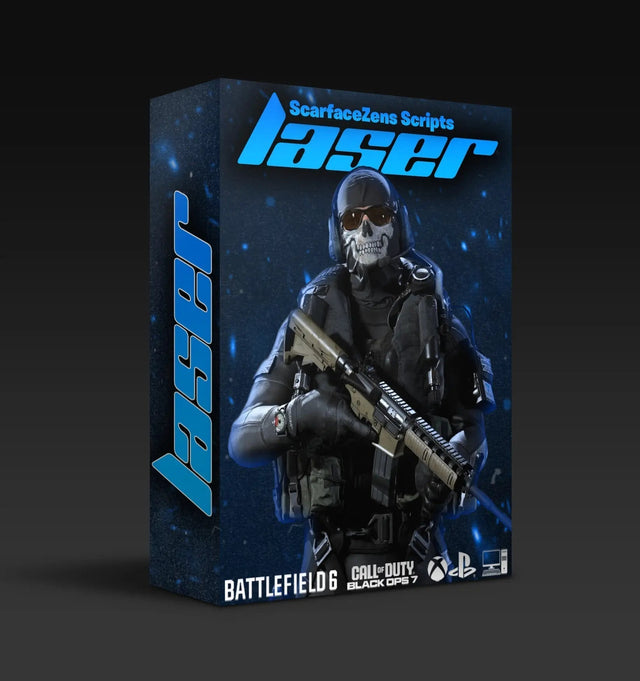
Diagnose your COD setup with Laser Elite loaded →
How do you open the Device Monitor?
Connect the Zen to your Windows PC and press F3 in Zen Studio. That shortcut is what the Cronus controller testing guide uses when it walks you through verifying a pad.
Two things have to be true before the window shows you anything useful.
- The Zen has to be on the PROG USB port, using a mini-USB cable. The Device Monitor only works through PROG. If you are unsure which socket is which, our Cronus Zen ports explained guide covers each one.
- Your firmware and Zen Studio both need to be current. Cronus lists minimum versions as a prerequisite for testing, and an old install is the first thing to rule out.
If you want to see output data as well as input data, the Cronus testing procedure has you run both cables at once: PROG for the data link, CONSOLE/PC for the controller signal. Cronus is explicit that this double-cable arrangement is for testing only, not for playing.
Why is the Device Monitor not showing my inputs?
An empty Input Area is a result, not a failure. It means the controller is not reaching the Zen, which narrows the problem to the pad, the cable, or the port you plugged into.
The Input Area prompts you to connect a controller when none is attached. Work through the obvious causes in order.
- Wrong port. Wired pads belong in the A1 through A4 inputs, not in CONSOLE/PC.
- Charge-only cable. Swap it for a known data cable before assuming the pad is dead.
- Detection limit. The Zen reads up to three USB inputs and two Bluetooth inputs, so unplug anything you are not testing.
- Stale scan. The refresh icon rescans for devices that are not appearing.
The information icon next to the USB and Bluetooth list shows extended detail including VID:PID values. That is how you confirm the Zen sees the specific pad you think it sees, which matters on third-party controllers that report themselves oddly.
Reading the Output Area: is your script doing anything?
The Output Area shows the data your Zen sends onward after your loaded script has run. This is the half that answers whether a mod is actually firing.
Hold aim on a full auto weapon and watch the right stick Y output. If your input is still and the output is moving, anti-recoil is working, and the question becomes whether the value is tuned right rather than whether it exists.
No console attached? You can pick an emulator output protocol from a dropdown instead, covering PS5, PS4, Xbox One X|S, Switch, PS3, XB360 and PC or mobile. That lets you confirm script behavior at your desk before you ever boot a match.
The Output Area also carries six TRACE debug fields. Scripts use those to report their own state, so a well built script can tell you which mode it thinks it is in.
What does CPU Load tell you?
CPU Load is the number people ignore until their Zen starts stuttering. Cronus treats values under 80 percent as acceptable, which gives you a clean pass or fail reading.
| Reading | What it usually means | Next move |
|---|---|---|
| Under 80 percent | Headroom is fine | Look elsewhere for your issue |
| Near or over 80 percent | Too much running at once | Unload slots you are not using |
| Spikes only under fire | A heavy mod is firing | Trim combos, not the whole script |
VM Speed sits next to it, adjustable from 1ms to 40ms with 10ms as the default. Cronus frames that one as a tool for experienced scripters, so treat the default as correct unless you know precisely why you are moving it.
Active Slot: the number behind most "script not working" posts
Active Slot shows the number and name of whatever is currently loaded, or 0 if nothing is. A great many broken setups are simply slot 0 with a perfectly good script sitting unflashed on the PC. Our walkthrough on how to check if your Cronus Zen script is working runs the same test from the console side.
The controls around it are worth knowing. The plus button cycles through your memory slots, Unload drops everything back to slot 0, and CFG opens a GamePack's configuration screen where one exists.
One detail trips up a lot of people. Running a script with Build and Run, F5, puts the slot value at 10, because it is running live from Zen Studio rather than from flash memory. Close Zen Studio and that script is gone, which is exactly why a script that worked at your desk does nothing an hour later.
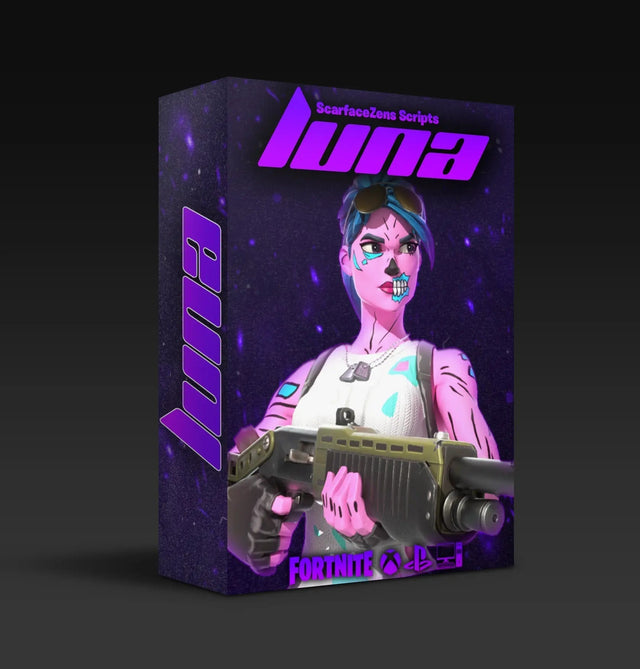
Load Luna Elite and watch your Fortnite inputs change →
Using the Plot Area to tune anti-recoil properly
Clicking any input or output field plots its live value on a graph, up to four fields at once. Pause Plot freezes the graph so you can study a burst you just fired, and Capture saves a screenshot of the plot with the field labels attached.
That turns recoil tuning from guesswork into something you can see. Plot your right stick Y output, fire a controlled burst, freeze it, and look at whether the correction curve matches the weapon's climb.
If you would rather have someone experienced look at the graph with you, the fastest route is to post your plot capture in the ScarZens Discord for setup help, where the 30,000-member community reads these daily.
Two more readouts earn their place. LED Status reports each player light as on, off, fast blinking or slow blinking, and Rumble Status gives motor speed as a percentage, with Rumble A as the strong motor and Rumble B as the weak one. Both can be overridden by a script, so unexpected behavior there is often the script working as designed.
Which script should you have loaded while you test?
The Device Monitor proves whether a script is firing. It cannot tell you whether the script was built for the game you are playing, which is where most tuning time actually goes. If you are still deciding, our guide to which Cronus Zen script to run for your game lays out the options.
All four ScarZens premium scripts are $49.99 at time of writing, reduced from $58.99, and the store shows 4.9 out of 5 across 2,100+ reviews with 4,000+ customers worldwide.
- Laser Elite for Call of Duty, tuned for Black Ops 7 and Warzone, with per-weapon anti-recoil and full automatic weapon detection so you are not switching profiles mid match. Runs on PS5, Xbox and PC. Laser Elite COD script, $49.99 at time of writing.
- Luna Elite for Fortnite Chapter 7, built around the current aim system with aim features and edit macros. Luna Elite Fortnite script, $49.99 at time of writing.
- Nets for NBA 2K27, with Auto Green, Auto Tempo and stamina mods for players chasing cleaner shot timing. Nets NBA 2K27 script, $49.99 at time of writing.
Browsing the full collection of Cronus Zen scripts is the quickest way to match a script to your game. Scar-Rust covers Rust Console on the same terms.
The usual objection is that $49.99 is steep when free scripts exist. The difference the product pages actually promise is maintenance: regular updates, 24/7 setup support and an active community, which is what you need the week a patch moves weapon behavior and your values stop matching.
Frequently asked questions
Does the Device Monitor work without a console connected?
Yes. With no console attached you select an emulator output protocol from the dropdown, choosing from PS5, PS4, Xbox One X|S, Switch, PS3, XB360 and PC or mobile. Output data then displays against that protocol so you can verify script behavior at your desk.
Why does my Active Slot show 10?
Slot 10 means the script is running live from Zen Studio via Build and Run rather than from the Zen's flash memory. It stops when Zen Studio does. Flash the script to a real memory slot if you want it to persist.
Does the Device Monitor show controller battery?
Only for wireless controllers. Wired pads do not report a battery level, so a blank battery readout on a wired pad is normal rather than a fault.
My pad works in Windows but not in the Device Monitor. What now?
Check the cable and port first, since the Device Monitor needs the Zen on PROG with a mini-USB cable. Then use the refresh icon to rescan, and reduce the number of attached inputs to stay inside the three USB and two Bluetooth detection limit.
How often should I use it?
Any time a game update changes how a weapon behaves. Comparing input against output for two minutes tells you whether your script is firing and whether your values still fit, which is far faster than re-tuning blind.
Our flagship scripts.
Luna Elite, Laser Elite, Nets and Scar-Rust. One purchase each, with free updates for life.
Browse the scripts