Cronus Zen Synchronizing Flash Error? Fix It in Minutes
Zen Studio frozen on Synchronizing Flash, Please Wait? The fix takes about two minutes and does not need a hard reset. Here is the exact order to run it.
 ScarZens Team
Sep 5, 2026
8 min read
ScarZens Team
Sep 5, 2026
8 min read

Zen Studio opens, throws up "Synchronizing Flash, Please Wait" and then simply sits there. The progress never moves, the device panel is useless, and the script you paid for is stuck on your PC instead of on your Zen. Nothing you click makes any difference.
The fix takes about two minutes. Close Zen Studio completely, leave the Zen plugged into your PC on the PROG port, open the Cronus marketplace in a browser, connect using Cronus Bridge, drag any gamepack onto any slot, then hit Program. Reopen Zen Studio and the message will be gone.
That sounds unrelated to the error, and it is worth understanding why it works before you run it. The short version is that the flash on your device and the copy Zen Studio thinks it has stopped agreeing with each other. Writing anything at all to a slot forces them back into sync.
Get a script with setup help included →
What does the Synchronizing Flash error actually mean?
Your Zen stores its slots in onboard flash memory. Zen Studio keeps its own picture of what is in those slots so it can show you the slot list without reading the device every time you click something. When those two versions disagree, Zen Studio tries to reconcile them on startup and hangs partway through.
This is why the error survives restarts. Closing the software does not touch the flash, and reopening it just repeats the same failed comparison. You have to change something on the device itself to break the loop.
It is also why the error has nothing to do with which script you were running. A corrupted sync state looks identical whether your last slot held a Fortnite script, a COD script, or an empty gamepack.
How do you fix the Synchronizing Flash error?
Work through these in order. Do not skip the first step, because Zen Studio holding the USB connection is what blocks the browser tool from claiming the device.
- Fully close Zen Studio. Not minimized, not sitting in the tray. End it properly so nothing is holding the connection.
- Leave the Zen plugged into your computer. It needs to stay connected on the PROG port, which is the USB port on the right side of the device.
- Open a browser and go to the Cronus marketplace. Chrome works reliably for this. The page lives at marketplace.cmindapi.com.
- Click Connect on the left, choose Cronus Bridge, then confirm. Your Zen should appear as an available device once the browser has permission to talk to it.
- Drag any gamepack onto any slot. It genuinely does not matter which one. If a new window pops open during this, close it and carry on.
- Click Program. You will see a flashing message for a few seconds. Wait for it to clear, close the browser, then reopen Zen Studio.
The error should be gone and your slot list should load normally. You can now overwrite the throwaway gamepack with whatever you actually intended to install.
Why does the PROG port matter so much?
The Zen has two USB ports and they are not interchangeable. PROG is the programming port that talks to your computer, and CONSOLE/PC is the port that carries the output to your console. Plugging into the wrong one is the single most common cause of Zen Studio refusing to see the device at all.
Cronus lists a wrong-port connection as the usual explanation behind the "device disconnected" message, alongside a failing cable. If the marketplace tool cannot find your Zen either, check the port before you assume the device has died.
Cable quality is the other quiet culprit. A charge-only USB cable will power the Zen without carrying data, which produces exactly the symptoms people blame on firmware. Our full Cronus Zen ports explained breakdown covers which port does what and how to tell a data cable from a charging one.
Skip the guesswork with a guided setup →
What if the flash fix does not clear it?
A small number of cases need heavier tools. Cronus documents a separate workaround for a device that hangs during programming rather than during startup sync, and it is worth trying before anything drastic.
- Unplug and reconnect the PROG cable
- Run Tools then Reset Zen Studio, which puts the software back to defaults
- After it restarts, open the device panel and click Find Device
If Zen Studio opens fine but your slot refuses to run, that is a different fault with a different fix. Our guide to a Cronus Zen script not loading covers the compile and slot checks worth running first.
If the device is still unresponsive, a hard reset returns the Zen to factory condition. Read the warning in the next paragraph before you do this, because it is genuinely destructive.
A hard reset wipes everything on the device. Back up your mouse and keyboard profiles first, and make sure you still have your own copy of every script you use, because scripts cannot be pulled back off the Zen once they are on it. This is the reason we tell customers to keep their download rather than treating the device as storage.
The procedure itself is quick. Start with nothing connected, hold both large blue P1 and P2 buttons either side of the screen, and keep holding while you plug the Zen into a console or PC using the CONSOLE/PC port. Hold for at least four seconds and watch for the LEDs to cycle red, green and blue.
When it works, the Collective Minds logo appears on the OLED screen and you are back to a clean device. The official Cronus hard reset page has the full procedure if you want to follow along with the manufacturer's own wording.
Quick reference: which fix for which symptom
| What you see | What to do first |
|---|---|
| Stuck on "Synchronizing Flash, Please Wait" | Flash any gamepack via the marketplace and Cronus Bridge |
| "Device disconnected" | Check you are on the PROG port, then swap the USB cable |
| Connected but not responding | Device panel, then Find Device |
| Hangs while programming | Reconnect PROG cable, Tools then Reset Zen Studio |
| Blank screen, no LEDs, nothing works | Hard reset, then check warranty |
Is your script the reason Zen Studio is stuck?
Almost never, and this is the objection worth clearing up. The sync error happens at the software and flash layer, before the contents of any slot are read or executed. A perfectly healthy script sitting in slot one cannot cause it.
What a good script does change is how much of this you deal with alone. Every ScarZens script comes with setup guides and support in our Discord, and updates are free for life on the copy you buy. That matters more than it sounds when a firmware change breaks a tutorial you were following.
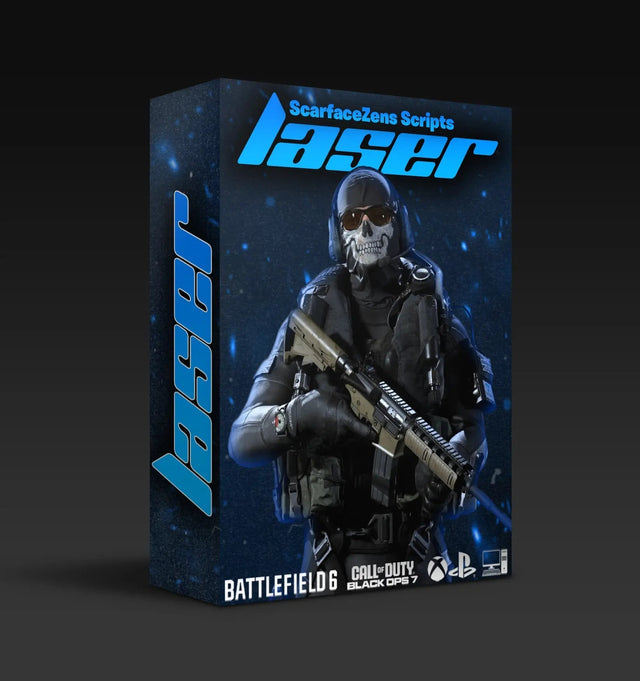
Laser Elite is our Call of Duty script, tuned for Black Ops 7 and Warzone, with per-weapon anti-recoil, aim assist boosting and full auto weapon detection so the correct profile loads the moment you fire. It runs on PS4 and PS5, Xbox, PC and Nintendo, and at time of writing it is $49.99 down from a $58.99 compare-at price. The product page currently shows 4.9 out of 5 from 625 customer reviews, and the store lists 4,000+ customers worldwide.
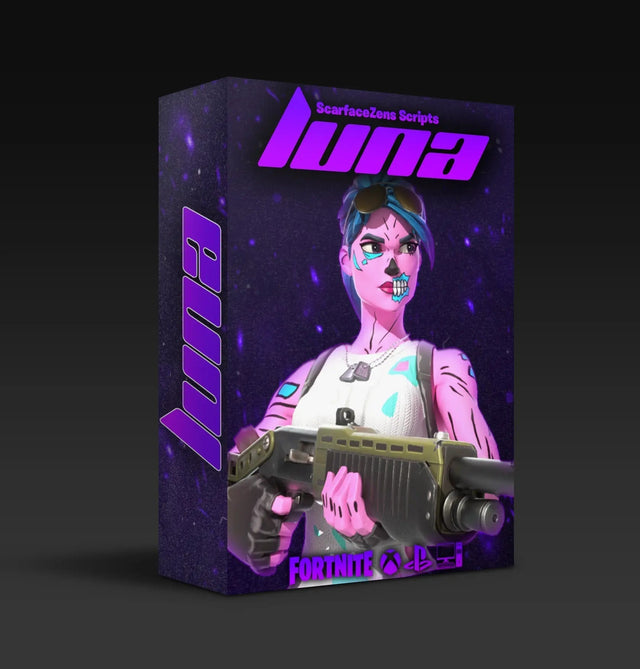
If Fortnite is your game instead, Luna Elite covers Chapter 7 with boosted aim assist, anti-recoil, edit macros and an on-device menu, also $49.99 at time of writing. Both sit in the full ScarZens script collection if you want to compare them properly.
Not sure which one fits your setup? Our overview of Cronus Zen scripts and which one to run walks through all four by game.
Still stuck after all of the above? The 30,000-member ScarZens Discord has admins who walk people through flash and firmware problems daily, plus setup videos for every platform we support.
Cronus Zen Synchronizing Flash FAQ
Will flashing a random gamepack overwrite my script?
Only the slot you drop it on. Pick an empty slot if you have one, or accept that you will reinstall whatever was in the slot you chose. Reinstalling takes seconds once Zen Studio opens normally again.
Do I need a specific browser for the marketplace fix?
Use Chrome or another Chromium browser such as Edge. The connection relies on browser support for talking to USB devices directly, which Firefox and Safari do not provide. This is the same reason the Cronus firmware tool only works in those browsers.
Why does this keep happening to me?
Repeat occurrences usually point at the cable or the port rather than the software. Try a different data-capable USB cable and make sure you are consistently using PROG when programming. A powered USB port on the back of a desktop is more reliable than a front panel or an unpowered hub.
Does a hard reset delete my scripts permanently?
It clears everything on the device, and scripts cannot be exported off the Zen beforehand. As long as you kept your original download you can put everything back in a few minutes. Anyone who bought from us can re-download their script from Discord at any time.
Will I lose my mouse and keyboard profiles?
Yes, unless you back them up before the reset. Export your profiles to your computer first, then import them once the device comes back up. This is the one step people skip and regret.
The short version
Synchronizing Flash is a sync problem, not a dead device. Close Zen Studio, write any gamepack through the marketplace on the PROG port, and it clears. Keep a spare data cable in the drawer and you will hit this far less often.
Our flagship scripts.
Luna Elite, Laser Elite, Nets and Scar-Rust. One purchase each, with free updates for life.
Browse the scripts