Cronus Zen Nintendo Switch: Setup, Pads and Switch 2
The Cronus Zen works on the original Switch family but not the Switch 2. Here is the full setup, which controllers pair how, and what to check when nothing connects.
 ScarZens Team
Oct 14, 2026
7 min read
ScarZens Team
Oct 14, 2026
7 min read

You bought a Cronus Zen, you own a Switch, and nothing is happening when you plug it in. Or worse, you just picked up a Switch 2 and you want to know whether the Zen in your drawer is now a paperweight. Both questions have clean answers, and neither of them is the one most YouTube tutorials give you.
Short answer: the Cronus Zen works on the original Nintendo Switch family, including the OLED and the Lite, but Cronus states in its own documentation that the Zen does not currently support the Nintendo Switch 2. On Switch 1 the catch is that the official Joy-Cons and Wireless Pro Controller connect over Bluetooth only, so plugging them into the Zen with a cable will never work.
See which ScarZens script fits your main game →
Does the Cronus Zen work on the Nintendo Switch 2?
No, not at the moment. Cronus publishes a dedicated Nintendo Switch 2 page in its official guide, and the whole page says the console is not currently supported and tells readers to check back later. The public firmware changelog has no Switch 2 entry either, which is the second place you would expect support to show up first.
That is accurate as of October 14, 2026. It is a hardware and firmware limitation on the Zen side, so no script, setting or workaround changes it. Anyone selling you a Switch 2 solution for the Zen right now is selling something Cronus has not shipped.
If Switch 2 is your only console, hold onto the Zen and watch the changelog rather than buying anything new for it today.
Which Switch consoles and controllers does the Cronus Zen support?
The original Switch, the Switch OLED, the Switch Lite and the TV dock are all listed as supported in the official guide. Where people get stuck is the controller side, because the connection method is not your choice. Each pad is Bluetooth, USB or both, and the guide is specific about which.
| Controller | Connection |
|---|---|
| Official Joy-Cons (L and R) | Bluetooth only |
| Official Wireless Pro Controller | Bluetooth only |
| Hori D-Pad Controller (L and R) | Bluetooth only |
| Hori Switch Horipad | USB only |
| Gulikit ZEN Pro | USB or Bluetooth |
Unlicensed Switch controllers are listed as not compatible, and so are flight sticks and HOTAS setups. If you are running a cheap third-party pad and the Zen refuses to see it, that is usually the explanation rather than a fault in your setup.
How do you set up the Cronus Zen on a Nintendo Switch?
One console setting trips up almost everybody, and it is buried two menus deep. Cronus flags it as required for correct pairing, not optional.
- Flash the latest Zen firmware first. The Switch guide specifies a minimum firmware and Zen Studio build, and the current method runs through a browser-based web tool rather than from inside Zen Studio. Our Cronus Zen firmware update guide walks through the current process.
- Turn on wired communication on the console. Go to System Settings, then Controllers and Sensors, then enable Pro Controller Wired Communication.
- Connect the Zen to your computer through the PROG port and open Zen Studio.
- Open the Device panel and set the Emulator Output Protocol to Nintendo Switch. This is the step that tells the Zen what to pretend to be, and skipping it is why a correctly wired setup still does nothing.
- Pair your controller over Bluetooth. For the Wireless Pro, press the Zen's Bluetooth pairing button, then hold the controller's sync button until it connects.
Joy-Cons pair one at a time. Press the pairing button, hold the left Joy-Con sync button until it vibrates, then press the pairing button again and repeat for the right one. Treat it as two separate pairings rather than one.
Docked or handheld: what actually changes?
Power is the difference, and it catches people in both directions. Docked, the dock's 15V power supply has to be connected or the Zen will not power on at all. Plenty of people assume a dead Zen means a dead unit when the real problem is a dock running without its official supply.
Handheld is simpler but needs one part you probably do not own. The guide calls for an OTG USB-C adapter between the Switch and the Zen. Without it there is no connection to debug, because nothing is talking.
Can you use a PS5 or Xbox controller on the Switch through the Zen?
This is the real reason most people put a Zen on a Switch, and yes, it works. Non-Nintendo USB controllers go into the Zen's A3 port, and the guide notes you do not need an authentication controller sitting in A1 for the Switch. A DualSense connects by cable rather than Bluetooth, and Xbox pads need an adapter.
For wireless Xbox controllers, the Xbox Wireless Adapter goes in A3, then you briefly connect the controller to A2 and unplug it. A solid white LED is your confirmation that it took. The Astro C40 adapter also lives in A3.
If you want the full breakdown across every platform rather than just the Switch, our guide to Cronus Zen compatible controllers covers what works where.
Set up Laser Elite on your PS5, Xbox or PC →
What about headsets and voice chat?
The Switch does not offer direct wired headset support through Joy-Cons or the Wireless Pro Controller, so there is nothing for the Zen to pass through. A docked Switch is the exception. With a DualSense, a DualShock 4 or an Xbox Series X|S pad in A3, wired headset use becomes available.
Note that the DualShock 4 v1 is listed as working over neither USB nor Bluetooth here, while the v2 revision works over both. Check the model number on the back of the pad before you blame your setup.
Cronus Zen not working on Switch? Run these checks
- Zen will not power on while docked. The dock's 15V supply is missing or not seated.
- Nothing connects in handheld mode. You need the OTG USB-C adapter.
- No USB icon appears under Controllers on the console. The Switch has not synced with the Zen. Press the Zen's reset button to resynchronize.
- Controller dies mid-session. Pads do not reliably charge through the Zen, so start charged or use fresh batteries.
- Wired Pro Controller pad does nothing. Wired communication is still switched off in System Settings.
Players post working Switch wiring diagrams and compare pad combinations in the ScarZens Discord, where you can get your setup checked before you buy anything.
Do ScarZens scripts run on the Switch?
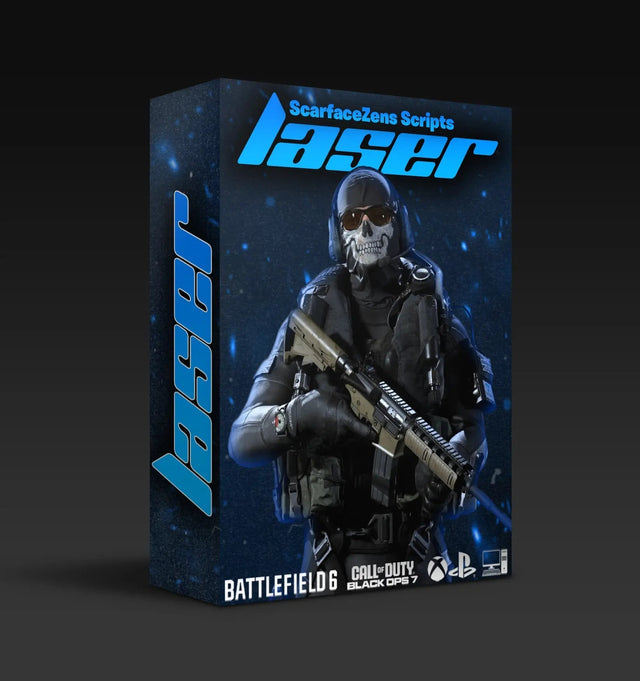
Here is the honest answer, because it is the objection worth raising yourself. Our four scripts are built for the console and PC versions of their games, not for Switch builds. Laser Elite's product page lists PS5, Xbox and PC, and that is the scope we stand behind.
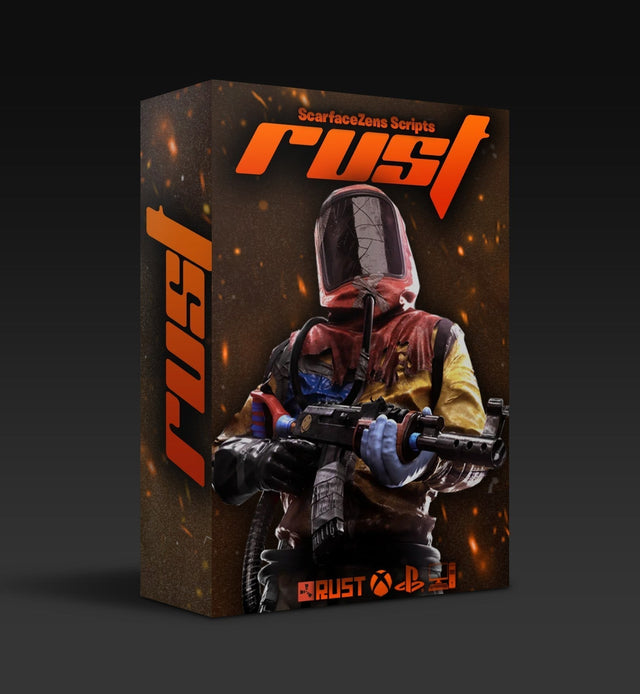
So the Zen on a Switch is a controller crossover and mapping tool for you, not a script platform. If your competitive hours are in Call of Duty, Fortnite, NBA 2K27 or Rust Console on a PS5, Xbox or PC, that is where our work lands. Laser Elite covers Black Ops 7, Warzone and most other FPS titles at $49.99 at time of writing, down from a $58.99 compare-at price.
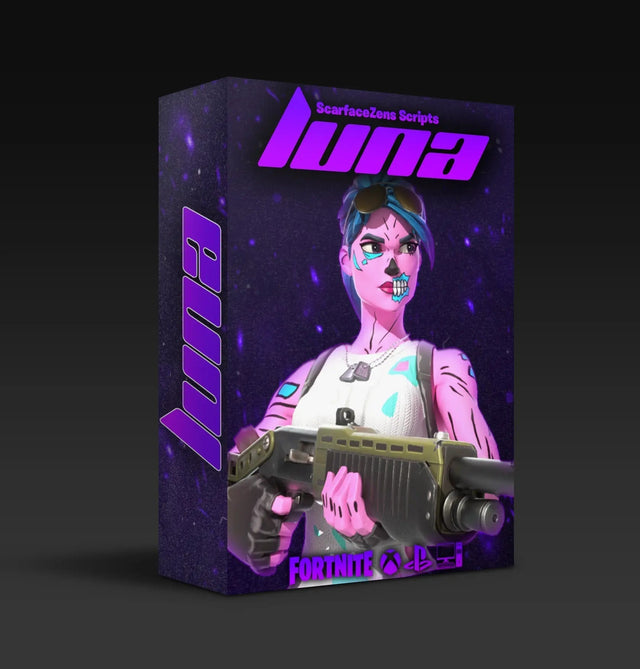
Luna Elite is the Fortnite equivalent at the same $49.99 at time of writing. The storefront shows 4.9 out of 5 from 2,100 plus reviews and 4,000 plus customers worldwide across the range. For the wider picture of which script suits which game, start with our overview of Cronus Zen scripts and which one to run.
FAQ
Does the Cronus Zen work on the Nintendo Switch Lite?
Yes. The Switch Lite is listed among the supported consoles in the official Cronus guide. Because it is handheld only, you will need an OTG USB-C adapter to connect the Zen.
Can I plug my Switch Pro Controller into the Cronus Zen with a cable?
No. The official Wireless Pro Controller is documented as Bluetooth only on the Zen, and USB is not supported for it. Pair it wirelessly using the Zen's Bluetooth pairing button instead.
Why does my Switch not show a USB icon under Controllers?
That means the console has not synchronized with the Zen. Pressing the Zen's reset button forces a resync and the icon should appear. Also confirm Pro Controller Wired Communication is enabled in System Settings.
Will the Cronus Zen support the Switch 2 later?
Cronus says to check back for future updates, which is as far as anyone can honestly go. The firmware changelog is the place to watch, since that is where new console protocols appear. Treat any third-party claim of working Switch 2 support as unproven until it shows up there.
Do I need a PC to set the Cronus Zen up for Switch?
You need something that runs Zen Studio to set the output protocol to Nintendo Switch. Once that is written to the device, the Zen keeps the setting and runs standalone on the console.
Our flagship scripts.
Luna Elite, Laser Elite, Nets and Scar-Rust. One purchase each, with free updates for life.
Browse the scripts