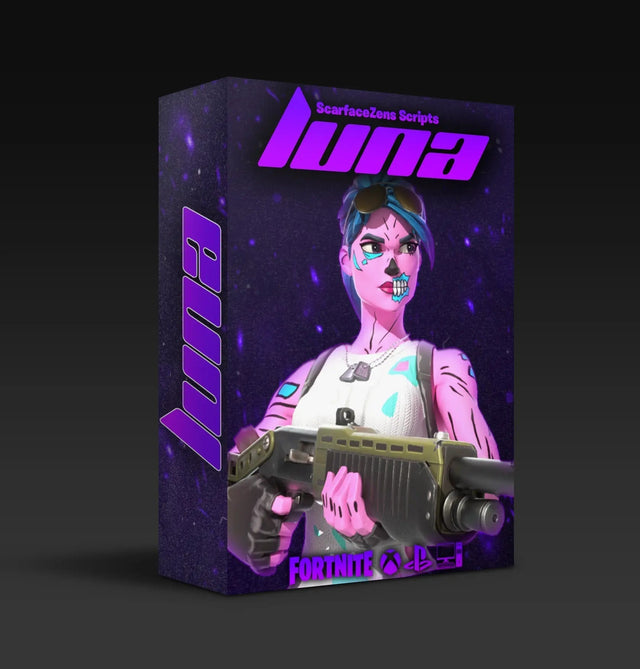
Luna Elite Setup: Flash It From Your Browser
No Zen Studio, no files, no codes. Redeem in Discord, open the loader in Chrome or Edge, pick a slot and flash. The full Luna Elite install.
 ScarZens Team
Aug 30, 2026
7 min read
ScarZens Team
Aug 30, 2026
7 min read

You bought Luna Elite and now you want it on your Zen without an evening of file management. Good news: there is no file. The whole thing runs from your browser.
Here is the entire process. Redeem your order in the ScarZens Discord, open scarscripts.com/loader in Chrome or Edge, log in with the same Discord account, plug your Zen into the PC PROG port with Zen Studio closed, pick a slot, and hit flash. No Zen Studio, no downloads, no codes to copy, and you are in a match within minutes.
What you need before you start
- Your Cronus Zen and its USB cable. The cable has to carry data, not power alone.
- A computer. Windows or Mac both work. This does not run from a phone or tablet.
- Chrome or Edge. These are the only two browsers that can talk to the Zen over USB.
- A Discord account. Specifically the one you redeemed your order with.
- Luna Elite bought from scarzens.com. The loader shows you the scripts your account actually owns.
Your Zen holds eight slots and each slot holds one script. The loader writes Luna Elite to the slot you pick and leaves every other slot exactly as it was.
Get Luna Elite and follow along →
Step 1: Redeem your order in Discord
After checkout you get redemption instructions by email plus an invite to the customer Discord server. Join the server and redeem your order following those instructions.
The moment you redeem, the script is tied to your Discord account automatically. There are no license keys to save and nothing to write down.
If anything goes wrong at this stage, open a ticket rather than guessing. Support runs 24/7.
Step 2: Open the loader
On your computer, open Chrome or Edge and go to scarscripts.com/loader.
Those two browsers are not a preference, they are a requirement. The loader uses WebHID, the technology that lets a browser connect to USB hardware, and Safari, Firefox and mobile browsers do not support it. Open the loader anywhere else and it will tell you so directly.
Step 3: Log in with Discord
Click the login button and approve the Discord window that appears. The loader reads only your account ID so it can match you to the scripts you own, and nothing else.
Once you are in, Luna Elite appears in your script list with your name on it. Nothing to download, nothing to paste.
If the script is not listed, you are almost certainly signed in with a different Discord account than the one you redeemed with. If you have not redeemed at all yet, go back to step one.
Step 4: Connect the Zen the right way
This single step causes about 90 percent of connection problems. Three things, and if you get all three right the loader connects first time, every time.
- Use the PC PROG port. There are two ports on the back of the Zen. CONSOLE goes to your console. PC PROG goes to your computer. For loading, always PC PROG.
- Close Zen Studio completely. If Zen Studio is open it reserves the device for itself and the browser can never reach it. Close it fully before you open the loader.
- Leave the Zen on its main screen. You want the Zen logo with the gear icon showing. If you are inside a menu on the device, back out first.
On a desktop, plug into a rear USB port and skip the hubs and extension cables. Front-panel ports and hubs are a common source of dropouts during loading.
Step 5: Connect My Zen
Press the big blue CONNECT MY ZEN button on the loader page. Your browser opens a small device picker.
Choose Cronus Bridge from that list, then press Connect. The loader reads your device within a few seconds and shows all eight slots along with a confirmation line telling you how many are already occupied.
If you closed the picker before choosing anything, just press Connect again and pick Cronus Bridge properly this time.
Get Luna Elite and load it in minutes →
Step 6: Pick your slot and flash
Select Luna Elite from your script list, choose one of the eight slots, then press the green flash button.
| What you see | What it means |
|---|---|
| Light gray slot | Already holds a script |
| Green slot | The slot you have selected |
| Progress bar | Writing in progress, leave it connected |
| Success message | Done, every other slot untouched |
Writing to an occupied slot replaces what is in it, so pick an empty slot if you want to keep your other scripts. The loader warns you first and names the script it is about to overwrite, so you cannot lose something by accident.
Do not unplug the cable mid-flash. Leave the Zen connected until the success message appears.
Want more than one script on the device? Repeat the same step with a different script and a different empty slot. Eight slots means up to eight scripts loaded at once, switchable from the Zen screen.
Step 7: Move to your console and play
Unplug the Zen from your computer and connect it to your console, this time using the CONSOLE port. Plug your controller into the Zen.
On the device screen, navigate to the slot you just loaded. The LUNA ELITE splash with falling stars appears and you are ready to play.
From here, everything is configured on the controller itself. Our Luna Elite settings guide covers the mod menu, the Customize screen you should set first, and Quick Tune.
If the loader will not connect
| Message | Fix |
|---|---|
| Browser cannot access USB devices | Use Chrome or Edge on a computer, not mobile, Safari or Firefox |
| No device selected | You closed the picker early. Press Connect and choose Cronus Bridge |
| Device in use by another program | Close Zen Studio and any other loader tab, replug the Zen, connect again |
| Could not connect | Check PC PROG port, Zen on main screen, Zen Studio closed |
| Firmware version unsupported | Update the Zen firmware once, then return to the loader |
| Connection lost during loading | Replug and load again. Your device is fine and nothing was damaged |
For that firmware row, Cronus documents the current update procedure in its official firmware guide. You only need to do it once.
If your slots are displaying wrong, reset them: open Zen Studio, clear all slots, press Program, close Zen Studio, then come back to the loader and flash again. For anything the table above does not cover, work through the Luna Elite fix checklist.
The three golden rules: Zen Studio closed, cable in PC PROG, main screen showing. Stick to those and this is a two minute job.
Where Luna Elite fits
Luna Elite is the Fortnite script in the ScarZens Cronus Zen scripts collection, built for Chapter 7 and its aim system. It runs $49.99 at time of writing, down from a $58.99 compare-at price, and is trusted by over 1,800 Luna players.
If you are still deciding, our rundown of the best Fortnite Cronus Zen script compares the options. Stuck on a step right now? Screenshot the error and open a ticket in the ScarZens Discord, where the support team is on 24/7 and usually has people running in minutes.
Luna Elite setup FAQ
Do I need Zen Studio to install Luna Elite?
No, and it actively gets in the way. The loader talks to your Zen through the browser, and Zen Studio holds the device open so the browser cannot reach it. Close Zen Studio before loading.
Can I load Luna Elite from my phone?
No. The loader needs WebHID to reach the Zen over USB, and mobile browsers do not support it. Use Chrome or Edge on a Windows PC or a Mac.
Which port do I plug into for loading?
PC PROG, the one that goes to your computer. CONSOLE is the port that goes to your console when you are actually playing. Using the wrong one is the most common setup mistake.
Will loading Luna Elite wipe my other scripts?
Only if you deliberately pick an occupied slot. The loader writes to the one slot you select and leaves the other seven alone, and it warns you by name before overwriting anything.
What if I lose my file or reset my device?
There is no file to lose. Your scripts stay tied to your Discord account on our side, so you log back into the loader and flash again whenever you need to.
Our flagship scripts.
Luna Elite, Laser Elite, Nets and Scar-Rust. One purchase each, with free updates for life.
Browse the scripts