Cronus Zen Hard Reset: Fix a Frozen or Stuck Zen
Your Zen stuck on a screen or dead mid-match? Here is the hard reset sequence, exactly what it wipes, and the order to rebuild your slots after.
 ScarZens Team
Sep 22, 2026
7 min read
ScarZens Team
Sep 22, 2026
7 min read

Your Zen is stuck on a screen that will not change, or the mods went dead halfway through a match and nothing you press brings them back. Maybe Zen Studio throws a stack error every time you try to load a slot. Before you start pricing up a replacement, there is a factory-level reset built into the device that clears most of this in under a minute.
Unplug everything from the Zen, hold down both large blue buttons either side of the OLED screen, then plug the Zen into your console or PC through the CONSOLE/PC port while still holding them. Keep holding for at least four seconds, then wait for the RGB LEDs to run a red, green and blue sequence. When the Collective Minds gear head logo appears on the OLED, the reset landed.
That is the whole procedure. What it costs you is every setting on the device, because the Zen goes back to how it shipped.
Reload your COD slot with a current script →
What does a Cronus Zen hard reset actually do?
A hard reset reverts every setting on the Zen to its original out-of-the-box state. Cronus documents it as a recovery move for errors, not as routine maintenance. It is also not the same job as reflashing firmware, which is separate and comes later.
Two things need saving before you start. Cronus says to back up your mouse and keyboard profiles, because those go with everything else. Scripts cannot be pulled back off the device once they are gone, so keep copies of your builds somewhere other than the Zen.
That second point catches people out constantly. A slot only holds your tuned build until something overwrites or wipes it. If the only copy of your setup is sitting in memory slot 1, a reset takes it along with the rest.
How do you hard reset a Cronus Zen?
Work through this with nothing else plugged into the device. The order matters more than the speed.
- Disconnect everything. No controller, no console cable, nothing in any port on the Zen.
- Press and hold both blue buttons. These are the two large buttons sitting either side of the OLED screen, P1 and P2.
- Plug in while still holding. Connect the Zen to your console or PC through the CONSOLE/PC port with both buttons held down.
- Keep holding for at least four seconds. Letting go early is the single most common reason this does not take.
- Watch the RGB LEDs. They should flash through a red, green and blue sequence.
- Confirm on the screen. The Collective Minds gear head logo on the OLED means the reset completed.
If nothing happens at all, swap the USB cable and try a different port before you go again. Cronus lists an underpowered PC port as a cause of the Zen not being seen, and points to a powered hub where a port cannot supply enough. The official Cronus hard reset page is worth a read if your device behaves differently from the above.
When is a hard reset the right fix?
Not every fault wants a reset, and running one against the wrong symptom costs you your setup for nothing. Here is how the documented errors actually sort out.
| What you see | What it means | First move |
|---|---|---|
| E3002 | A system crash triggered by a specific event | Unplug every USB cable for 10 seconds, then reconnect. Hard reset only if that fails |
| E3001 | Firmware missing or corrupted | Reprogram the firmware. A reset on its own will not put firmware back |
| Stack or bytecode error | Underflow or overflow, usually a firmware mismatch | Hard reset, then reprogram firmware and load a single slot to test |
| Blank OLED on connection | Cronus documents this as a faulty unit | Warranty replacement rather than a reset |
| USB device not recognized | The port is not supplying enough power | Different port, different cable, or a powered hub |
The short read is that a hard reset fixes state. It does not put back missing firmware and it does not repair hardware. If you are matching a specific code to a fix, our Cronus Zen error codes guide walks through E3001, E3002 and the rest in order.
What do you do after the reset?
A clean Zen is a blank Zen, so there is a rebuild order that saves you repeating yourself. Get firmware current before you load anything on top of it.
- Firmware first. Hold the small blue reset button while connecting the Zen to a Windows PC through the CONSOLE/PC port at the back, and release once the OLED reads ZEN BOOTLOADER with the LEDs glowing purple and blue.
- Use Chrome or Edge. Cronus moved firmware updates to a web tool, and Firefox and Safari are documented as unlikely to finish the job. That single change is why so many older video tutorials leave people stranded.
- Load one script to slot 1. Test it before you fill the other slots, so a failure has one obvious cause.
- Re-import your MK profiles. This is the moment that backup pays for itself.
- Retune last. Values are the final layer, never the first.
Our Cronus Zen firmware update guide covers the web tool method step by step if the bootloader stage is where you get stuck. If your device is doing something the docs do not describe, the 30,000-member ScarZens Discord runs recovery threads where players post what worked on the same symptom, and the team answers setup questions there directly.
Put a current Fortnite build back in slot 1 →
Which script goes back on first?
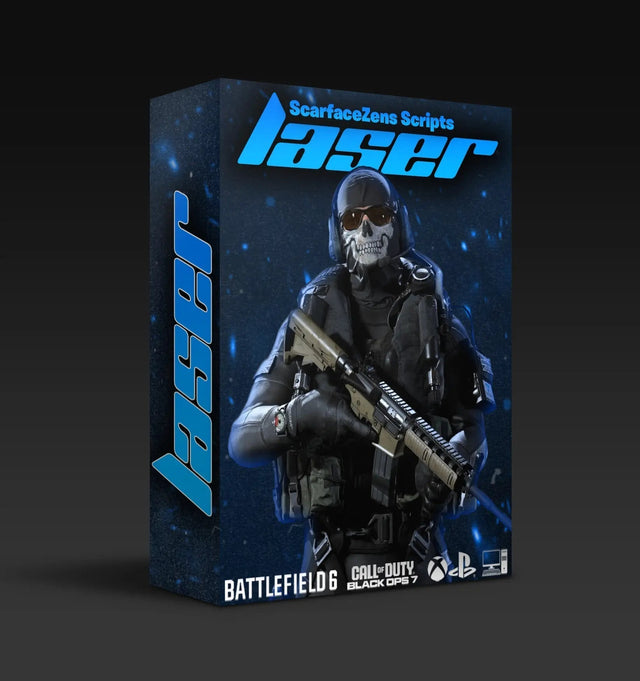
If you play Call of Duty, Laser Elite is the one to reload. It runs per-weapon anti-recoil with adjustable values across Black Ops 7 and Warzone loadouts, plus aim assist boosting you tune to your own playstyle and full auto weapon detection so you are not swapping profiles by hand. The product page lists PlayStation 4 and 5, Xbox and PC, with automatic weapon detection on PS5 controllers and manual gun selection on Xbox.
At time of writing it is $49.99, down from a $58.99 compare-at price, and the page shows 4.9 out of 5 from 625 customer reviews. Free lifetime updates are included, along with 20+ mods and a guided setup.
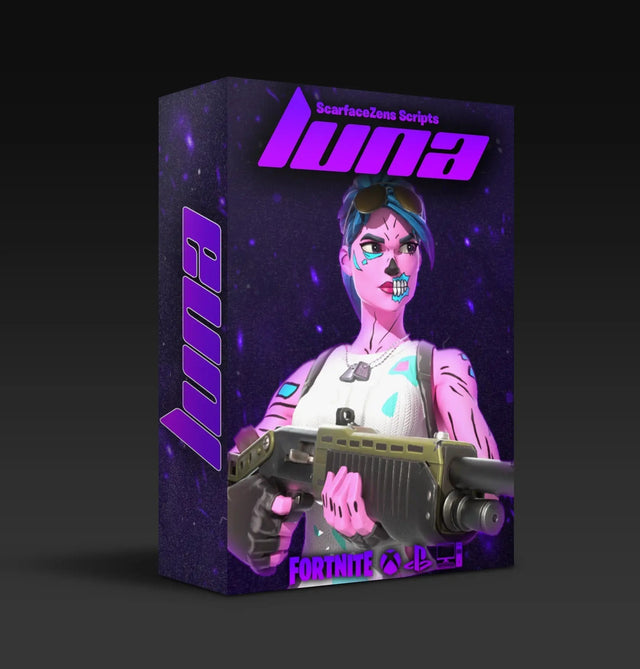
For Fortnite, Luna Elite covers sticky aim assist, a three-mode edit macro, beam anti-recoil, a turbo pickup macro, rapid fire on R2 and hair triggers. It runs on PlayStation 4 and 5, Xbox, PC and Nintendo Switch. At time of writing it is also $49.99 against a $58.99 compare-at price, with 4.9 out of 5 from 903 customer reviews and 4,000+ customers worldwide listed on the store.
The fair objection after a reset is that you have just lost hours of tuning and would rather not spend more on top. Luna Elite answers that with a menu on the Zen screen itself, so retuning after a wipe does not mean going to find a PC. Both scripts sit in the full ScarZens script collection if you want them side by side.
Not sure which of the four fits what you play? Our overview of which Cronus Zen scripts to run for your game breaks it down by title.
Cronus Zen hard reset FAQ
Does a hard reset delete my scripts?
Yes. The device returns to its out-of-the-box state, which takes your loaded scripts and settings with it. Cronus notes that scripts cannot be backed up off the Zen directly, so keep your build files somewhere else beforehand.
Will a hard reset fix an E3002 error?
Try the simpler fix first. Cronus documents E3002 as a system crash and says to unplug every USB cable for at least 10 seconds before reconnecting. A hard reset is the next step if that does not clear it.
Do I need to update firmware after a hard reset?
A reset does not strip the firmware off the device, so you are not forced into it. It is still the right moment to get current, because stack and bytecode errors are documented as coming from mismatched firmware versions. Do it before you reload scripts rather than after.
My Zen screen stays blank and the reset does nothing. What now?
Cronus documents an OLED that stays blank on connection as a faulty device rather than a software fault. Coverage runs from 90 days to a year depending on where you bought it, and there is a mail-in option for units past that window. Check your cable and USB port once more first, since an underpowered port looks much the same from the outside.
How often should I hard reset my Zen?
Only when something is actually broken. It is a recovery tool rather than maintenance, and reaching for it first means rebuilding your whole setup for problems a cable swap would have solved.
The short version
Hold both blue buttons, plug into the CONSOLE/PC port, hold four seconds, wait for the gear head logo. Back up your MK profiles and keep script copies off the device first, because none of it survives the wipe. Then rebuild in order: firmware, one script in slot 1, profiles, tuning.
Our flagship scripts.
Luna Elite, Laser Elite, Nets and Scar-Rust. One purchase each, with free updates for life.
Browse the scripts